 Anyscene AI
Video to Video AI
Upload a clip, describe the look you want, and get the same motion back in a new style. The camera move, the timing and the action stay; the world around them changes.
Video to Video by the Numbers
Every figure below is read from the models wired into this generator and the upload limits it enforces.
3 Video to video models under one account: Wan 2.6, Wan 2.7 and HappyHorse 1.0
Video to video models under one account: Wan 2.6, Wan 2.7 and HappyHorse 1.0
10 MB Maximum MP4 you can upload as the source clip; a 4 to 10 second phone video fits comfortably
Maximum MP4 you can upload as the source clip; a 4 to 10 second phone video fits comfortably
4–15s Output length you can pick, depending on the video to video model, at 720p or 1080p
Output length you can pick, depending on the video to video model, at 720p or 1080p
Looks You Can Ask Video to Video AI For
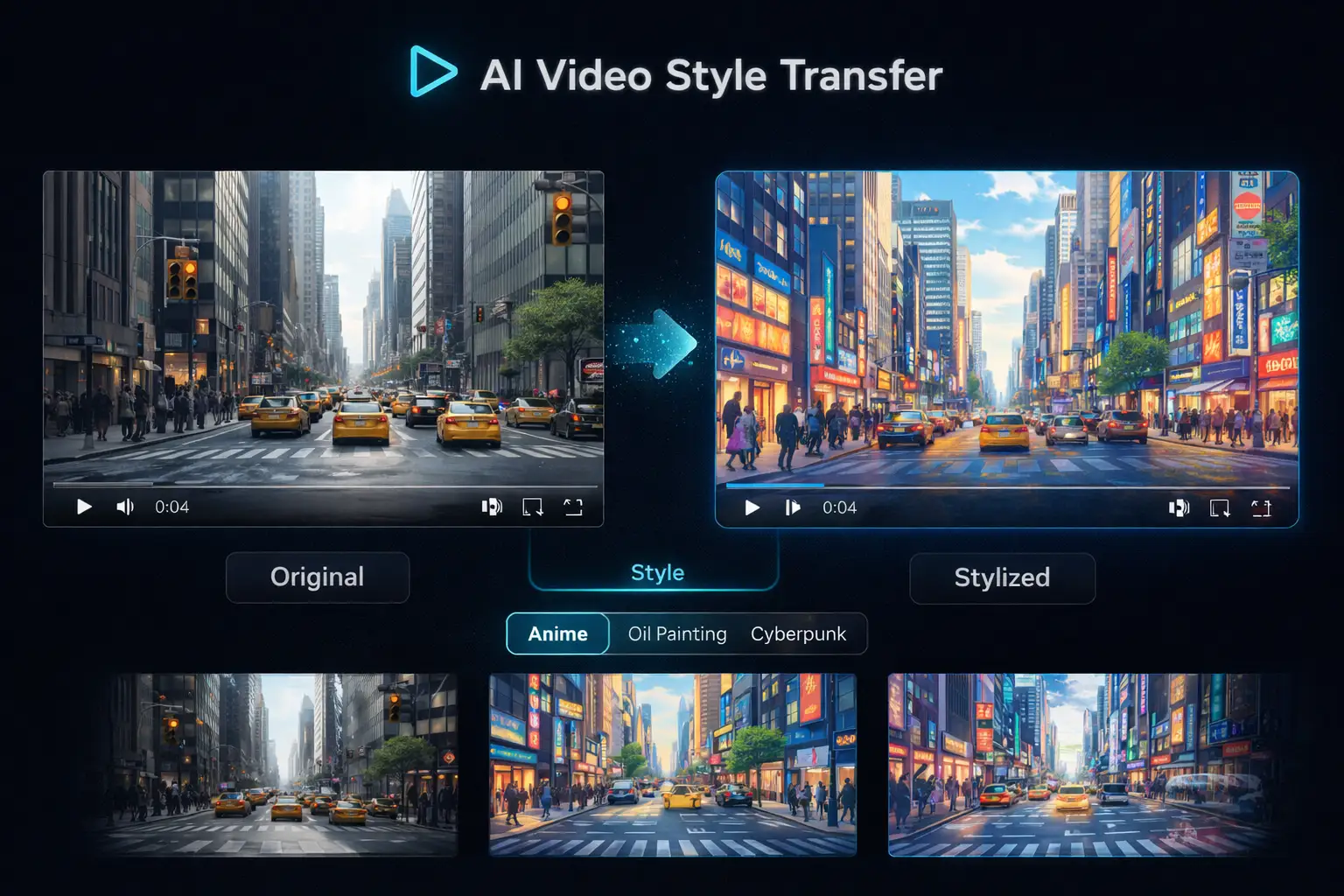
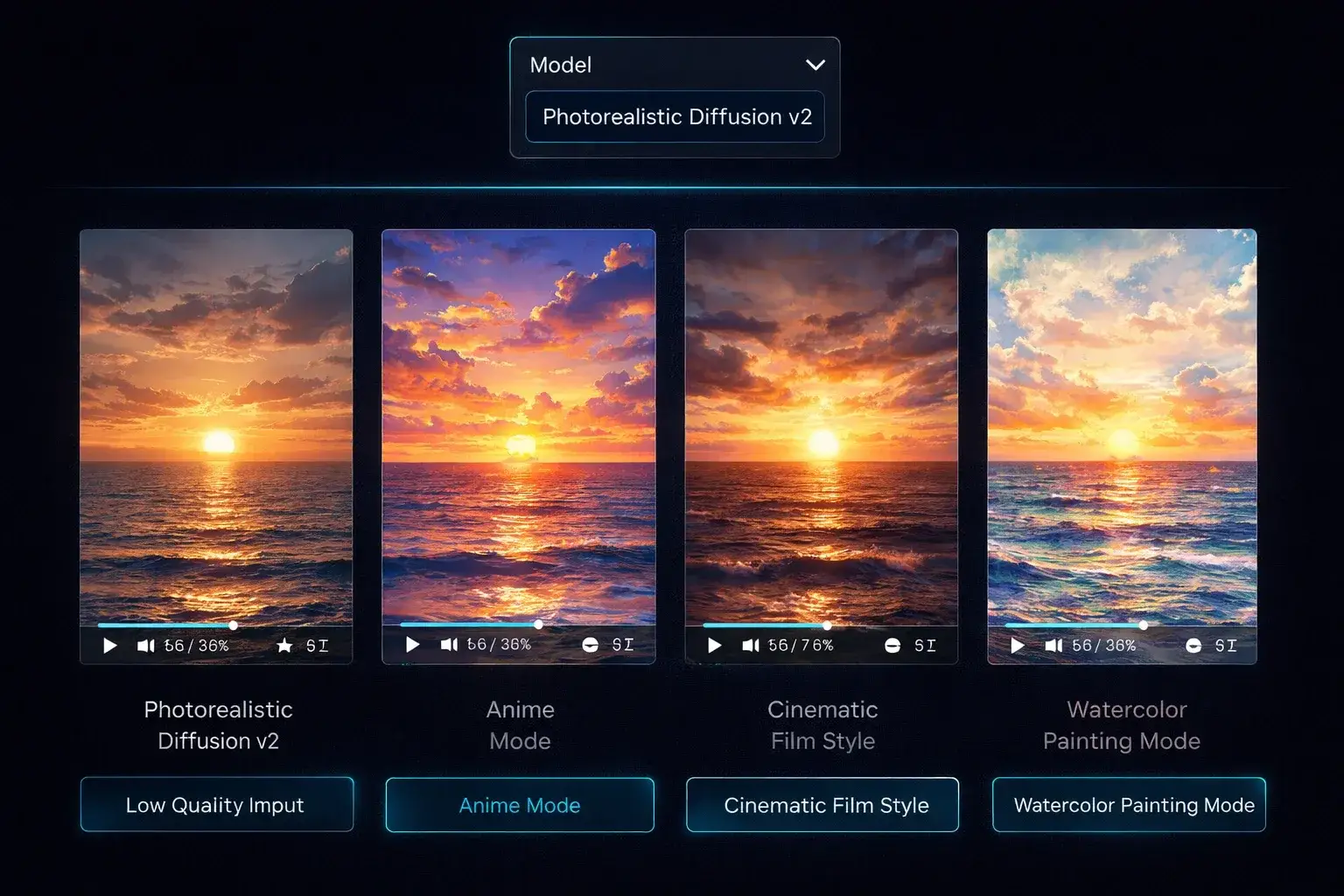
Photoreal, anime, 3D cartoon, painterly, cinematic. Any of these styles can be the target when you restyle a clip; the clips below show the range of looks the models render.
What Is Video to Video?
Video to video is an AI process that takes an existing clip and a written instruction, then re-renders every frame so the footage takes on a new style, setting or material while its motion is preserved. The person still walks the same path, the camera still pans the same way, but the street can become a painting, the daylight can become night, or the live-action actor can become an anime character. It differs from text to video, which invents the motion, and from image to video, which starts from a single still.
Your footage supplies the motion
Every video to video model reads the movement in your clip first: where the subject goes, how fast, how the camera follows. That motion is the skeleton of the output, which is why the result stays recognisably yours.
Your prompt supplies the look
The text describes what should be different: "anime style, cel shading", "same scene at golden hour", "turn the car into a red vintage convertible". You are describing the change, not the content the model can already see.
The model rebuilds the frames
Instead of pasting a filter on top, video to video re-renders the frames so shadows, reflections and textures match the new style. That is what separates it from a colour grade or a LUT.
What Stays, What Changes
The most common surprise with video to video is expecting it to behave like an editor. It behaves like a repaint. This is the split.
What stays
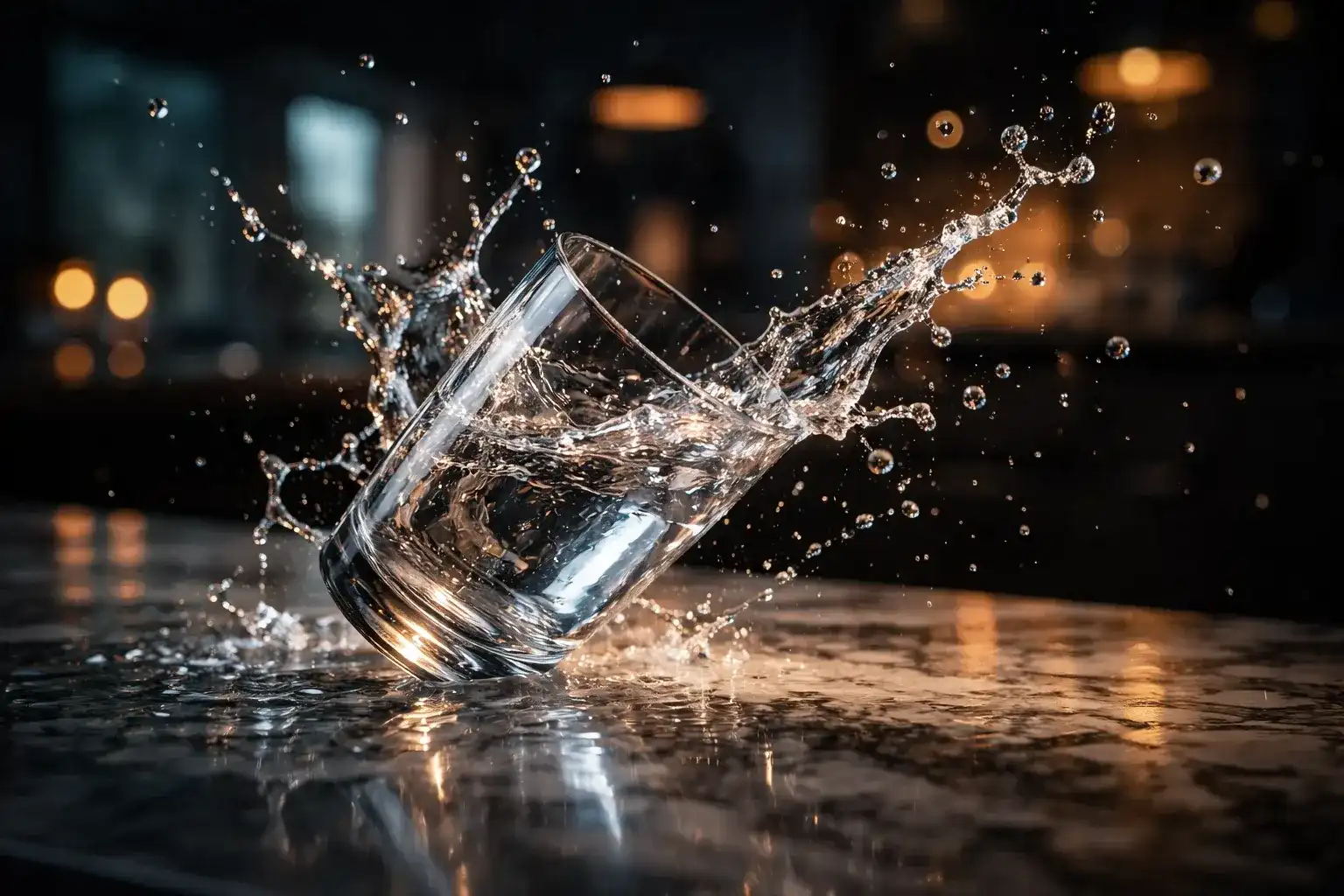
Motion path and timing. Camera movement and framing. The number of subjects and where they are in frame. Clip length, unless you pick a different duration. The rough composition of each shot. If your source clip is shaky, the output is shaky too.
What changes
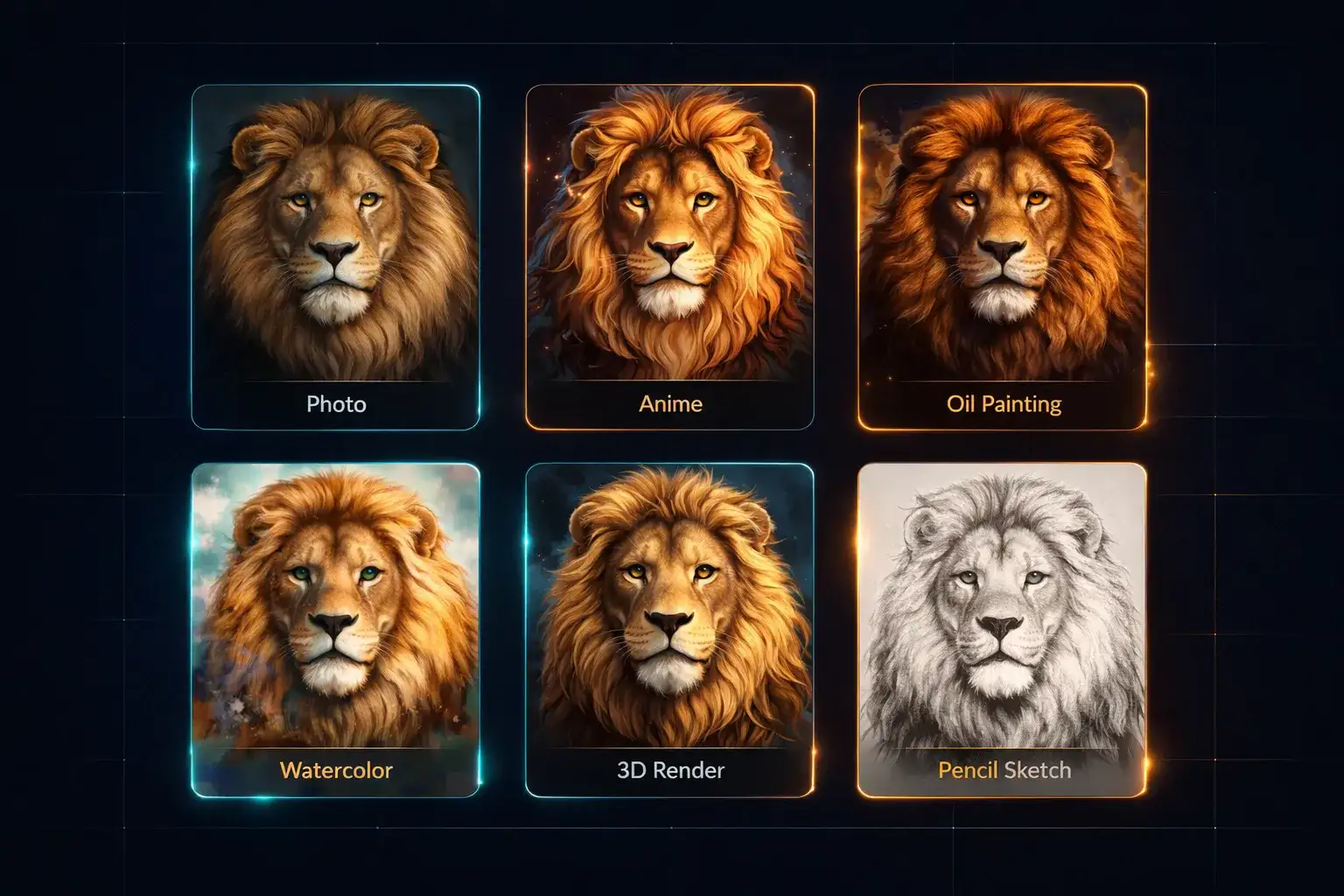
Art style: photoreal to anime, painting, clay, sketch. Materials and colours: a grey hoodie to a red leather jacket. Time of day and weather. Background and setting. Character appearance, within limits. Anything you name in the prompt is fair game; anything you do not name is kept as close to the source as the model can manage.
3 Video to Video Models, One Upload
Video to video is the most demanding of the four video scenes, so fewer models support it. These three do, and they split cleanly by what you are trying to change. The numbers are the live values in the generator.
Wan 2.6: the style transfer workhorse
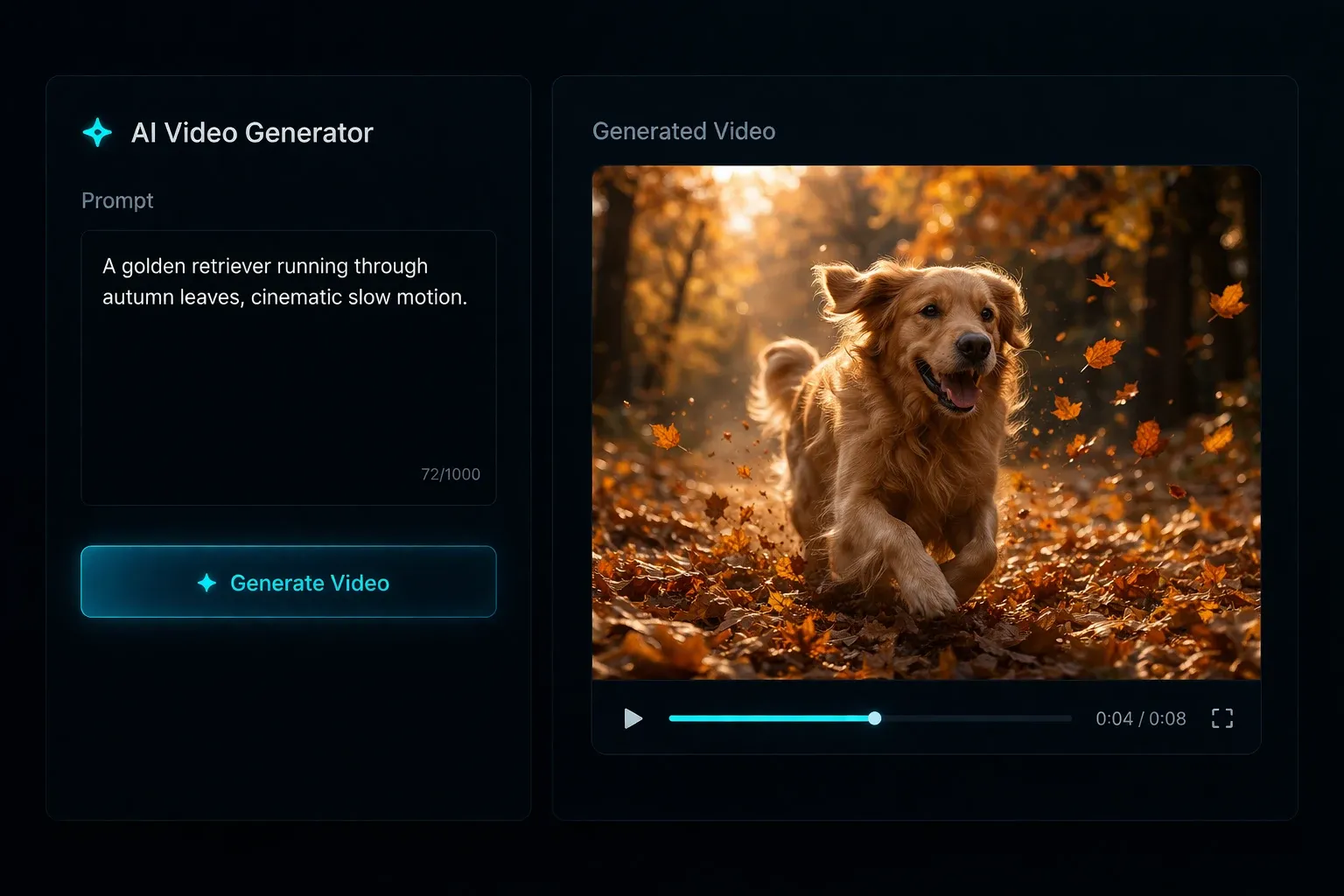
5 or 10 seconds, 720p or 1080p, 60 credits. The default video to video model for restyling: anime, painterly, cinematic regrades. Keeps motion tight and is the cheapest way to test whether a clip restyles well.
Wan 2.7: edit and reframe
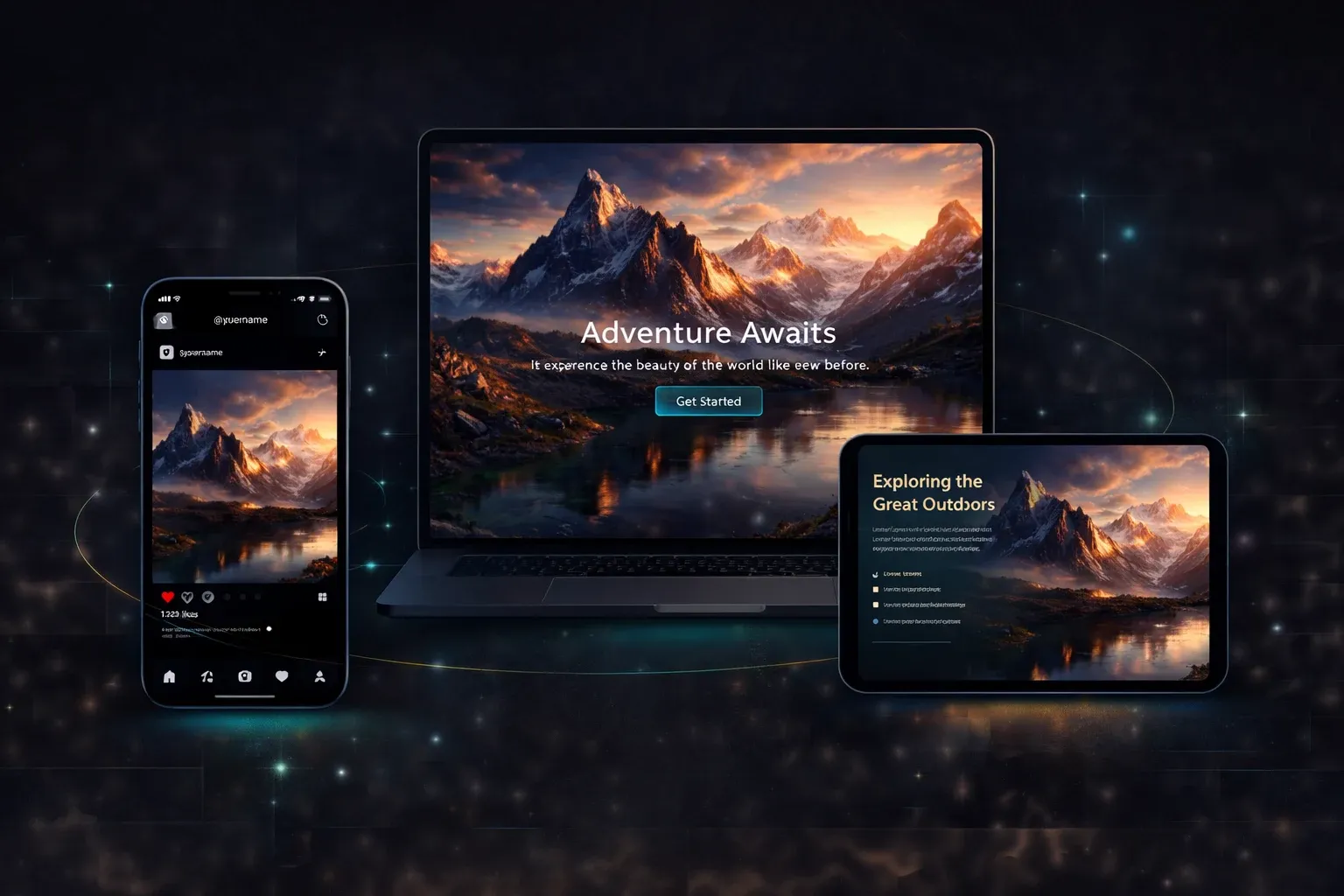
4 to 10 seconds, 720p or 1080p, 60 credits, and the only video to video model here that lets you pick the output aspect ratio (16:9, 9:16, 1:1, 4:3, 3:4). Choose it when the job is a change of setting, object or format rather than a pure style swap.
HappyHorse 1.0: precise edits, longer clips
5, 10 or 15 seconds, 720p or 1080p, 125 credits. The strongest prompt adherence of the three: when the instruction is specific ("replace the bicycle with a scooter, keep everything else"), this is the video to video model that follows it. Also the only one that reaches 15 seconds.
How to Restyle a Video in 3 Steps
The whole video to video workflow fits in one screen. A 5-second restyle on Wan 2.6 is usually back in two to four minutes.
Step 1: Upload the clip
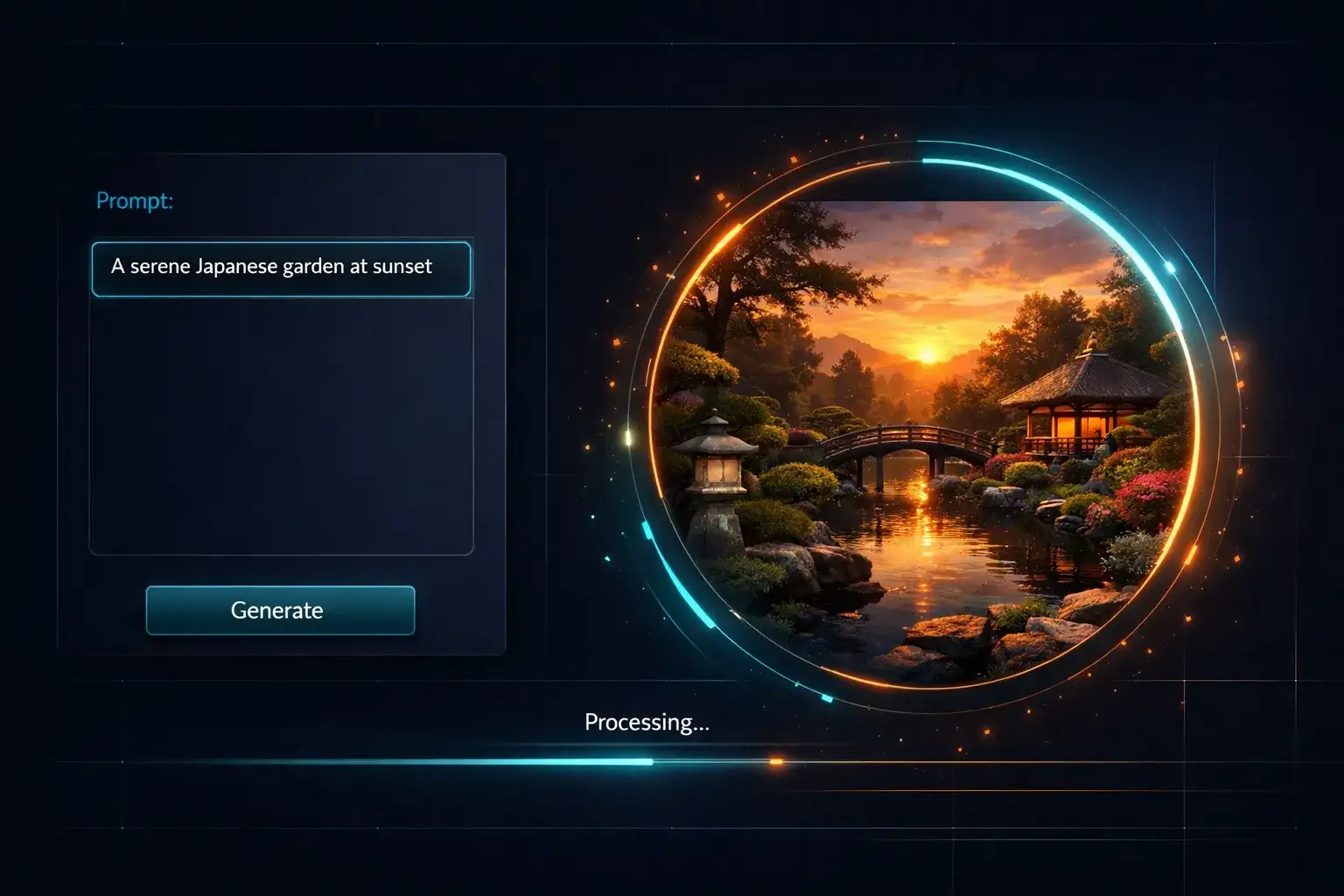
Drop an MP4 up to 10 MB into the Video to Video tab. Short, steady clips with one clear subject give the cleanest results; a 5 to 10 second phone video is ideal. Trim before uploading rather than after.
Step 2: Describe the new look
Write what should change, not what is in the video. "Anime style, cel shading, soft evening light" or "same shot, but snowing, blue hour". Name the style, the lighting and any object swaps, and leave the rest alone.
Step 3: Pick a model and generate
Wan 2.6 for style, Wan 2.7 when you also need a new aspect ratio, HappyHorse 1.0 for a precise object edit or a 15-second clip. Set duration and resolution, check the credit cost next to Generate, and download the MP4 when it lands.
Video to Video for Every Kind of Creator
The same video to video generator serves creators, marketers, musicians and filmmakers. What changes is the clip you upload and the look you ask for.
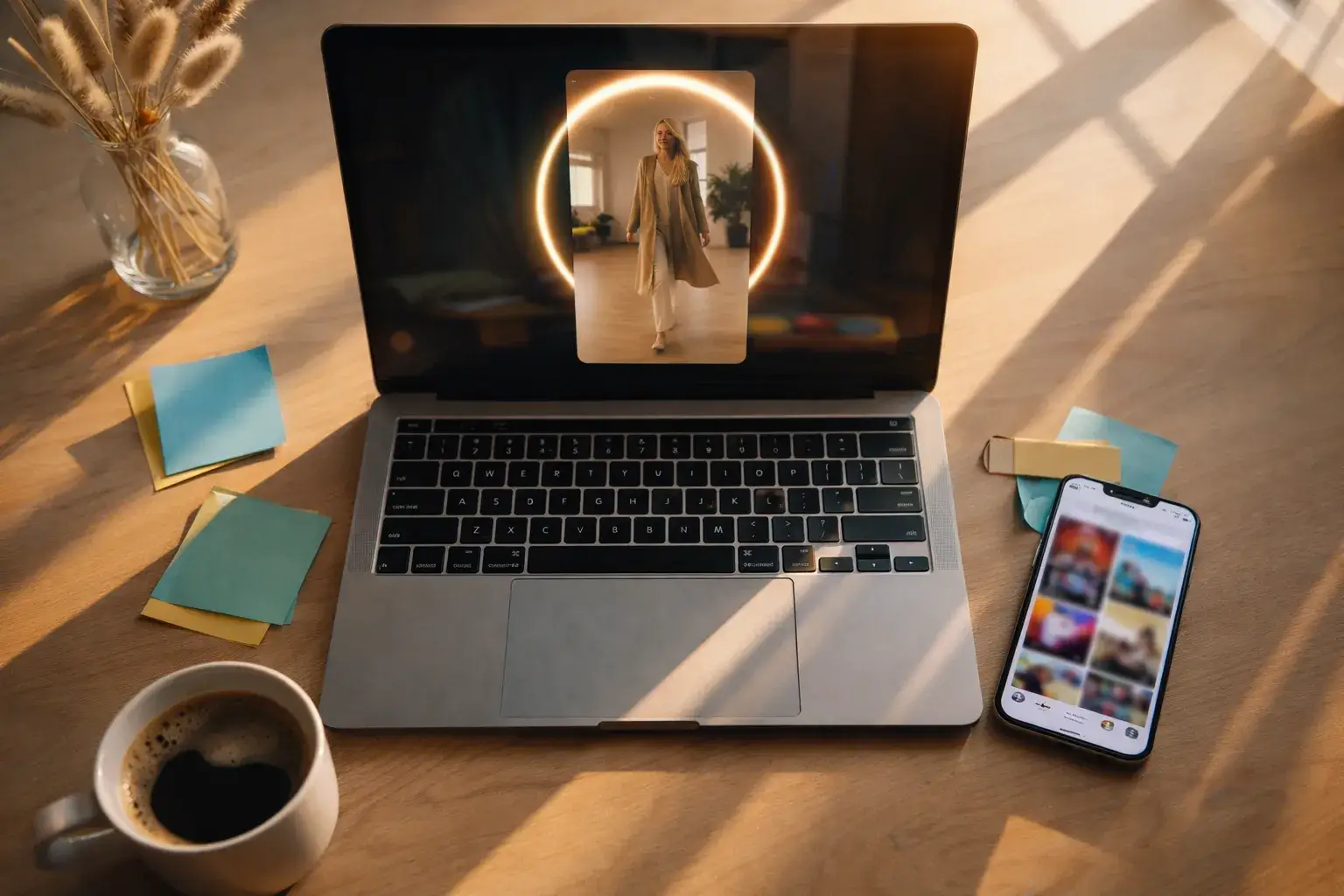
Restyle social clips
Turn a plain phone clip into an anime, comic or painterly version for Reels, Shorts and TikTok. One video to video pass gives the same dance, walk or reaction a look nobody else on the feed has.
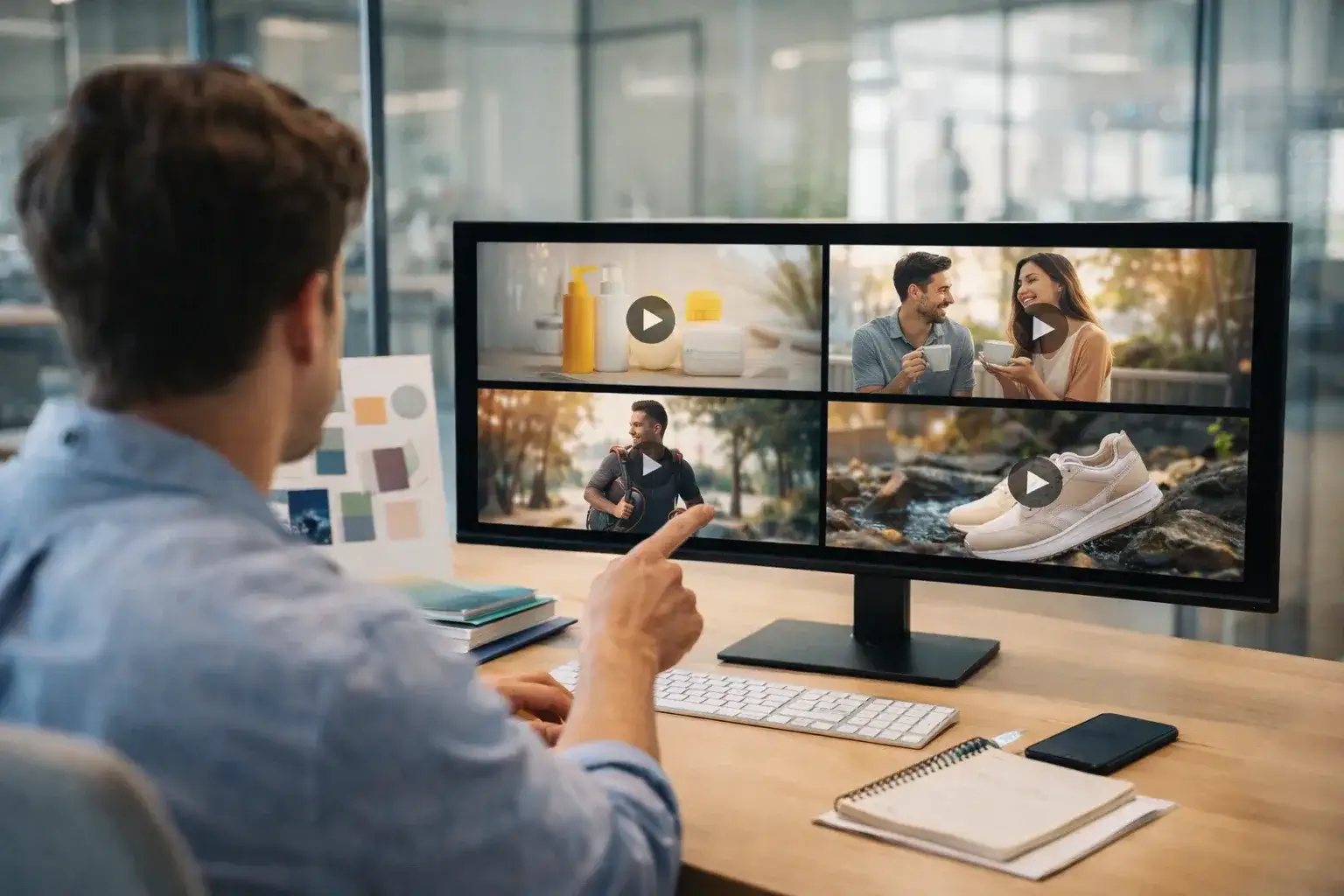
Ad variants without a reshoot
Shoot the hero clip once, then use video to video to produce a night version, a winter version and a stylised version for different placements. Same motion, same edit points, three creatives.
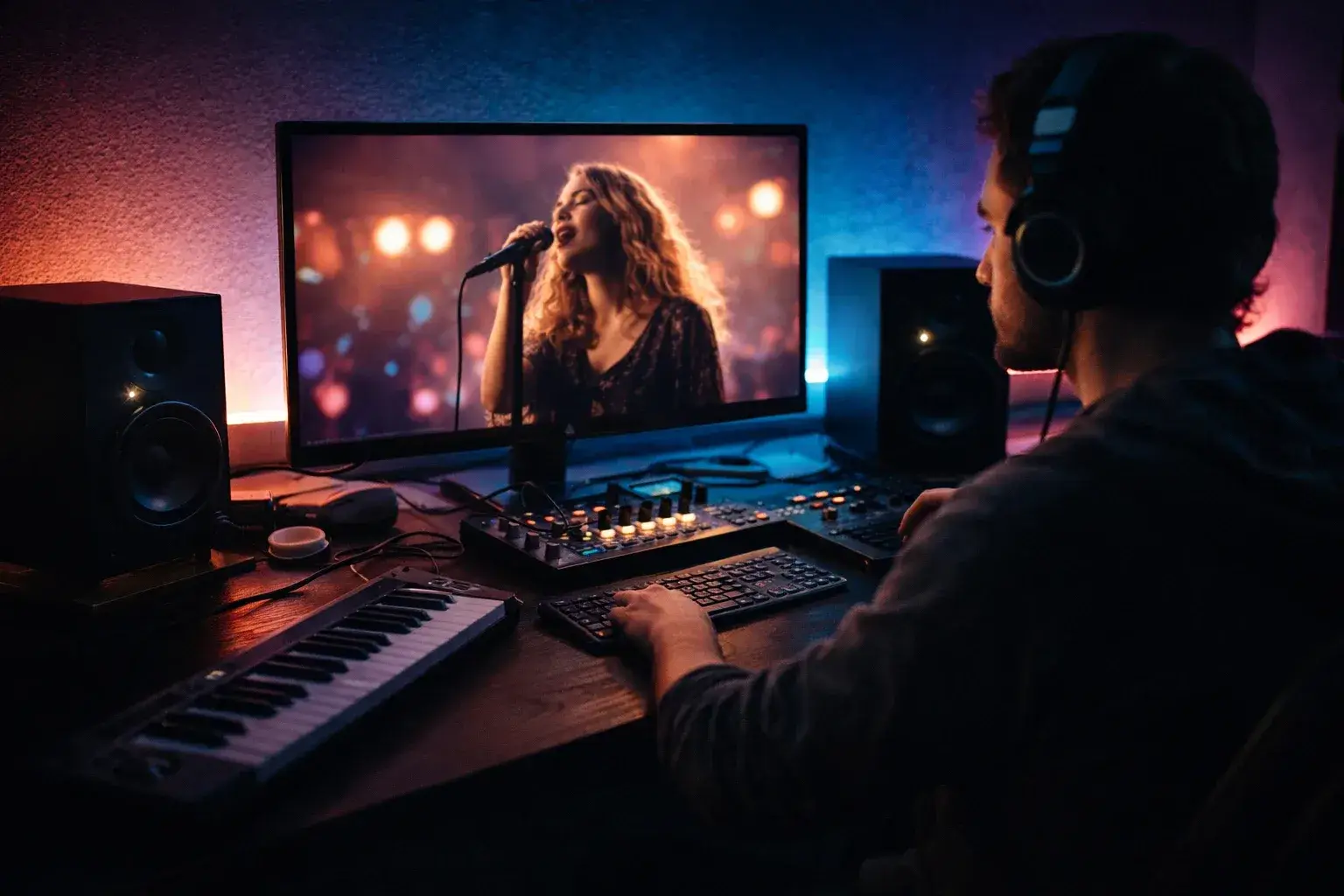
Music videos and visualisers
Film a performance on a phone and restyle it into something that matches the track: ink wash, neon, film grain. Video to video keeps the performer's timing locked to the beat.
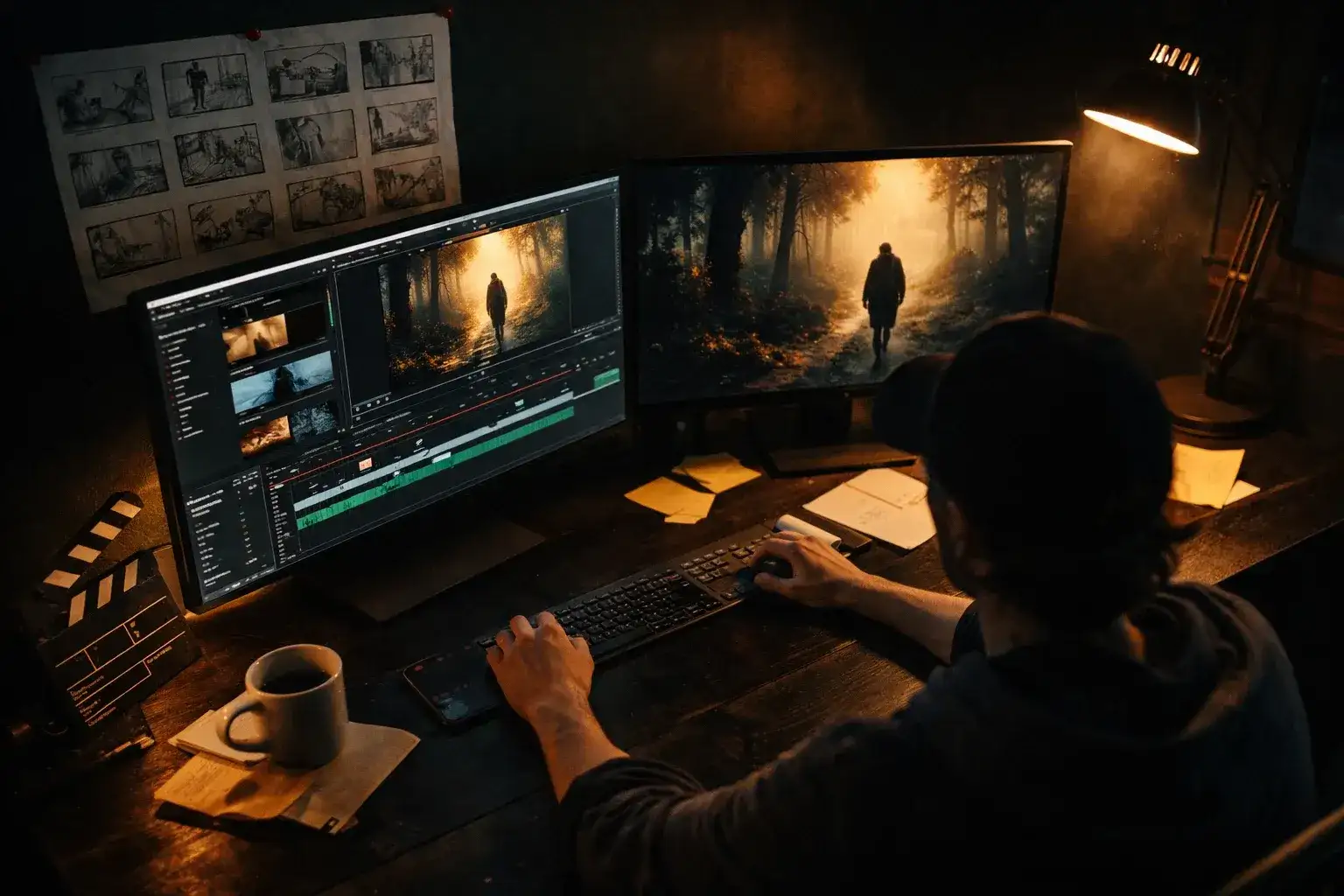
Previsualisation and look development
Show a director three colour worlds for the same blocking before anyone lights a set. Video to video turns a rehearsal recording into a look test in minutes.
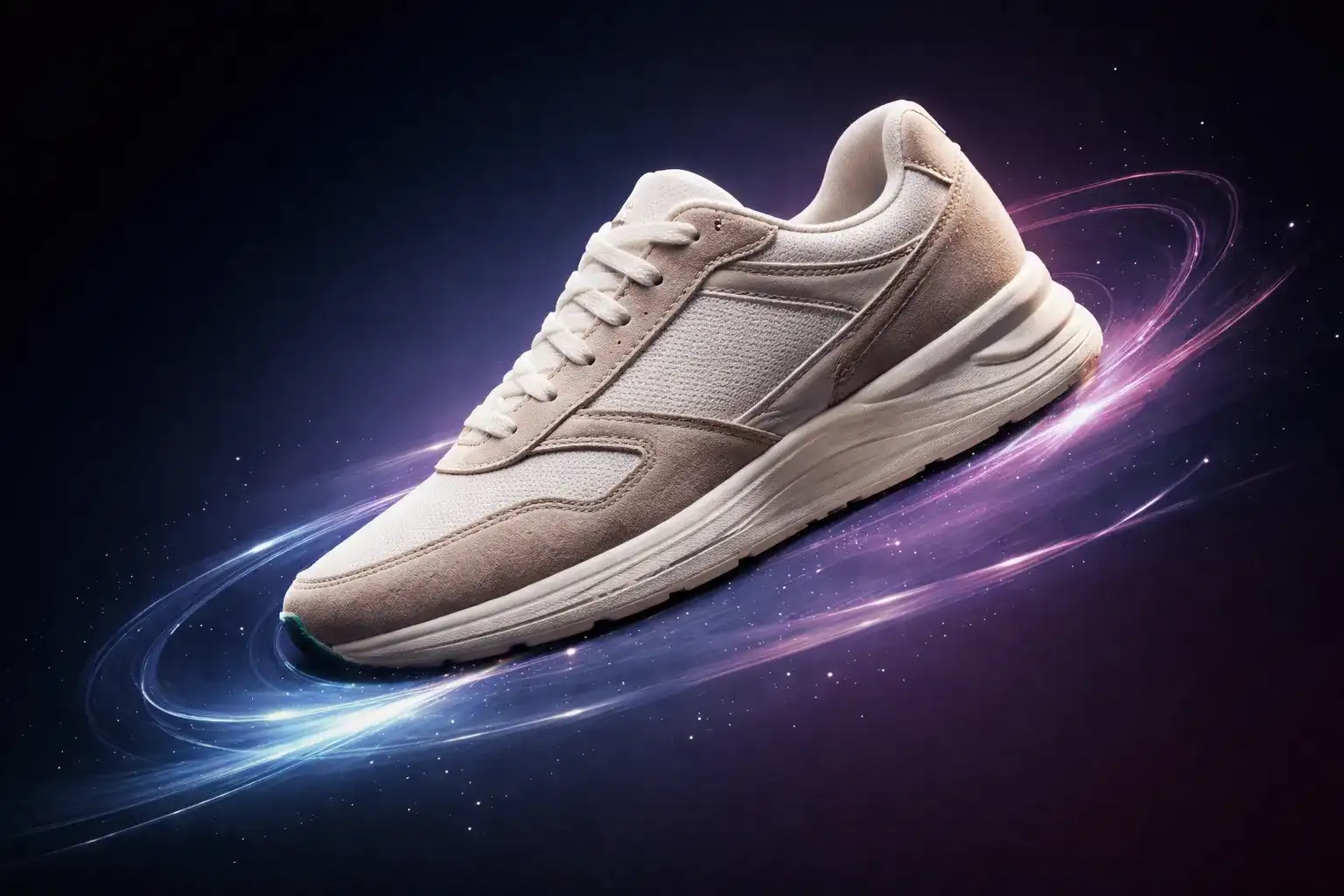
Product colourways and settings
A single product walkthrough becomes the black version, the sand version and the studio-lit version. Video to video changes material and background while the hand movement stays identical.
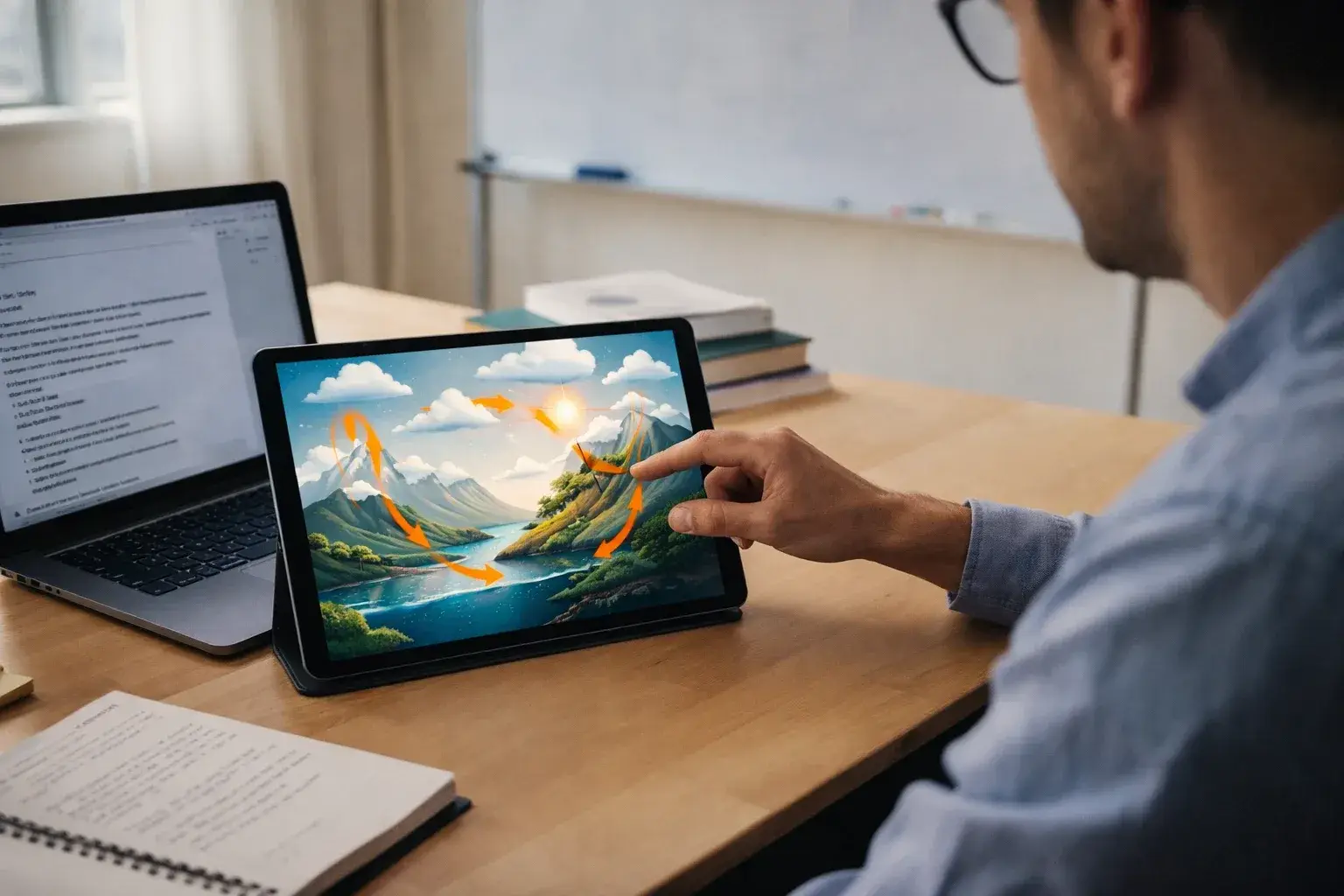
Explainers from screen recordings and demos
Restyle a dry demo into a clean illustrated sequence for a course or a slide. The pointer movement and the sequence of steps stay exactly where they were.
6 Video to Video Style Prompts to Start From
Paste one of these next to your upload, then adjust the nouns. Each names the style, the light and one thing to keep, which is the shape of a good video to video prompt.
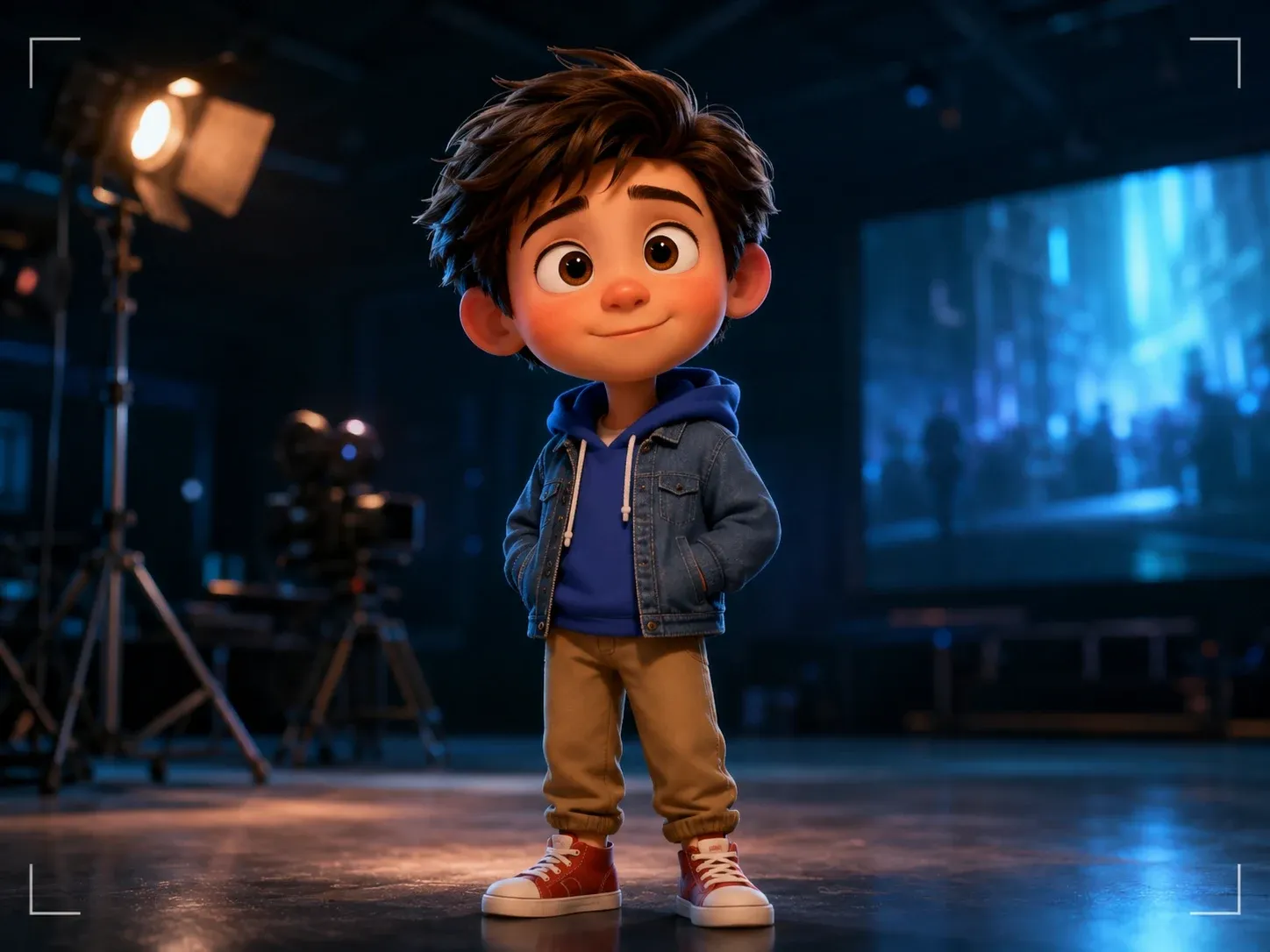
Anime
"Japanese anime style, clean cel shading, bold outlines, saturated sky, keep the character's clothing colours and the camera movement unchanged."
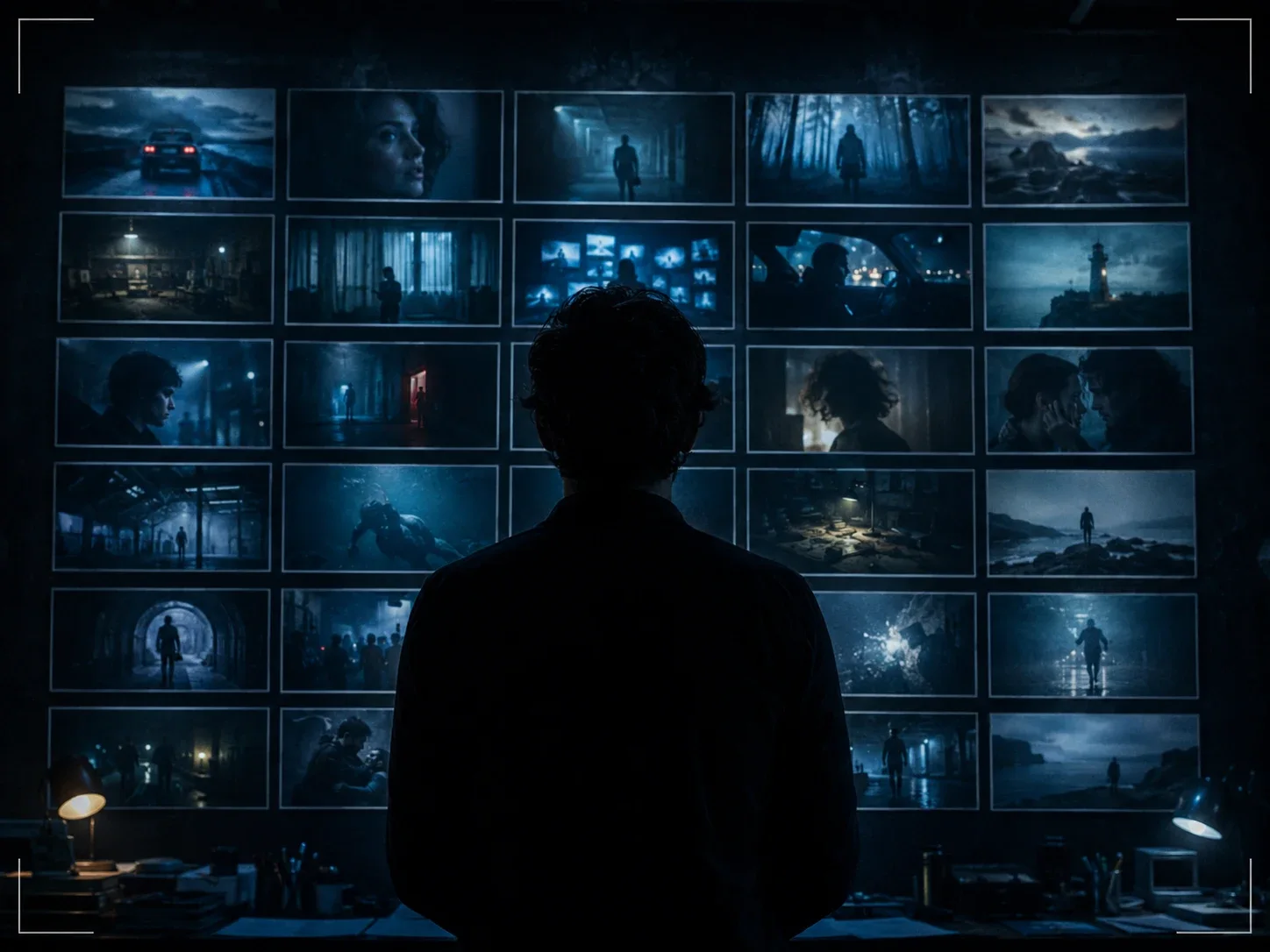
Oil painting
"Impressionist oil painting, visible brushstrokes, warm palette, thick paint texture on every surface, motion and framing preserved."
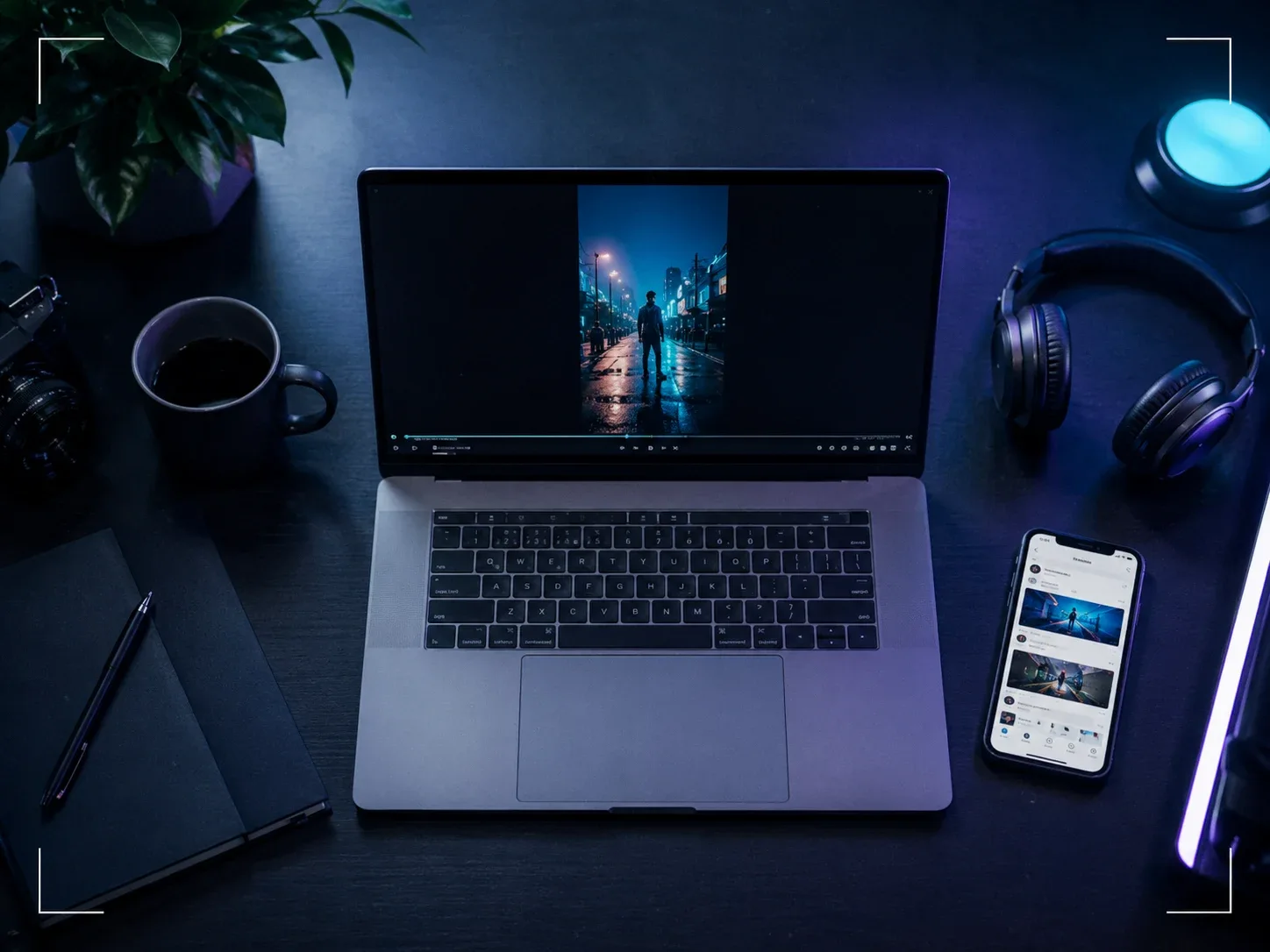
Cyberpunk night
"Same scene at night, rain-soaked streets, neon signage in magenta and cyan, wet reflections, cinematic anamorphic look, keep every subject in place."
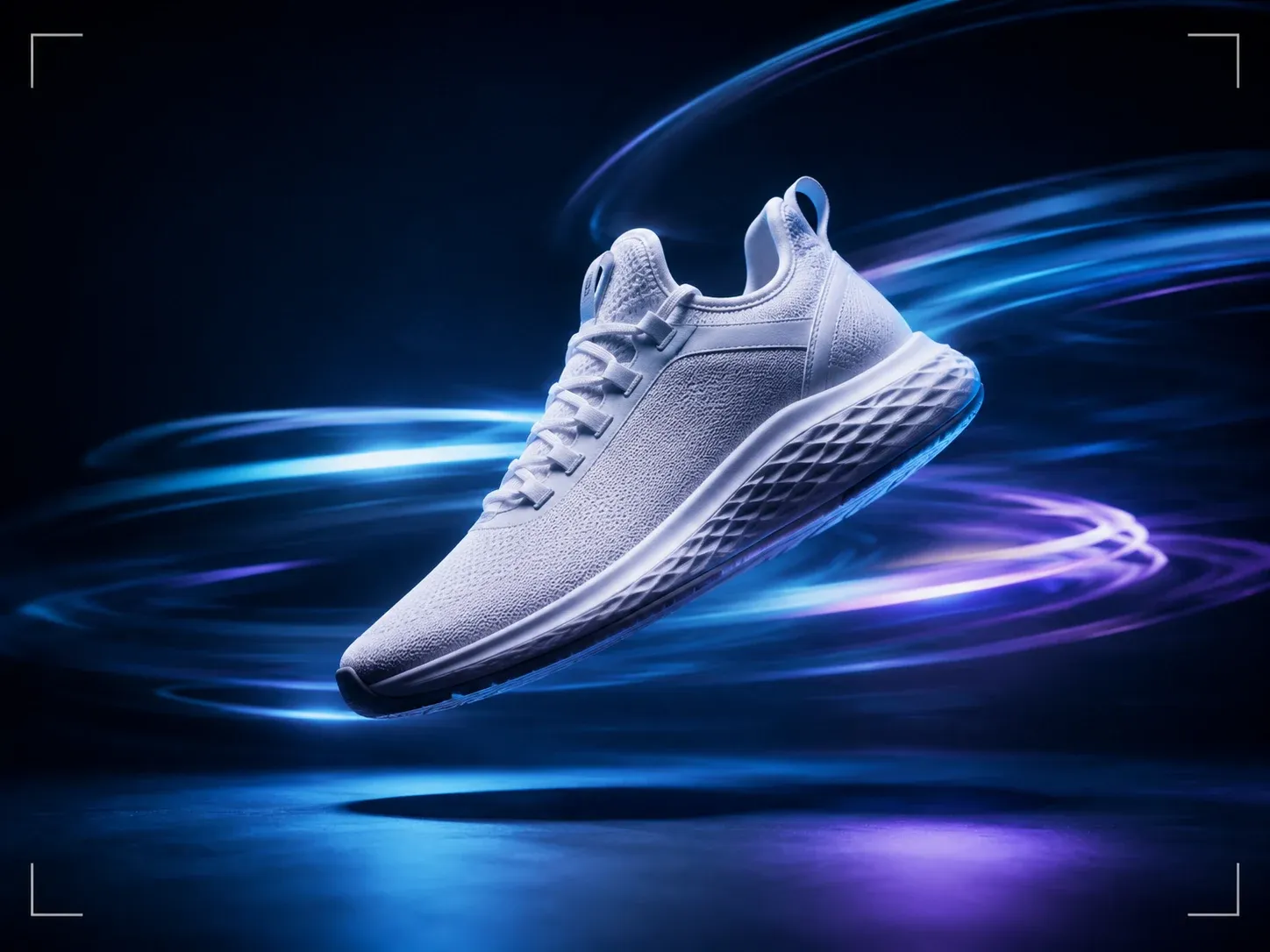
Claymation
"Stop-motion clay animation, hand-moulded characters and props, matte surfaces, slight frame stutter, soft studio lighting, same actions and timing."
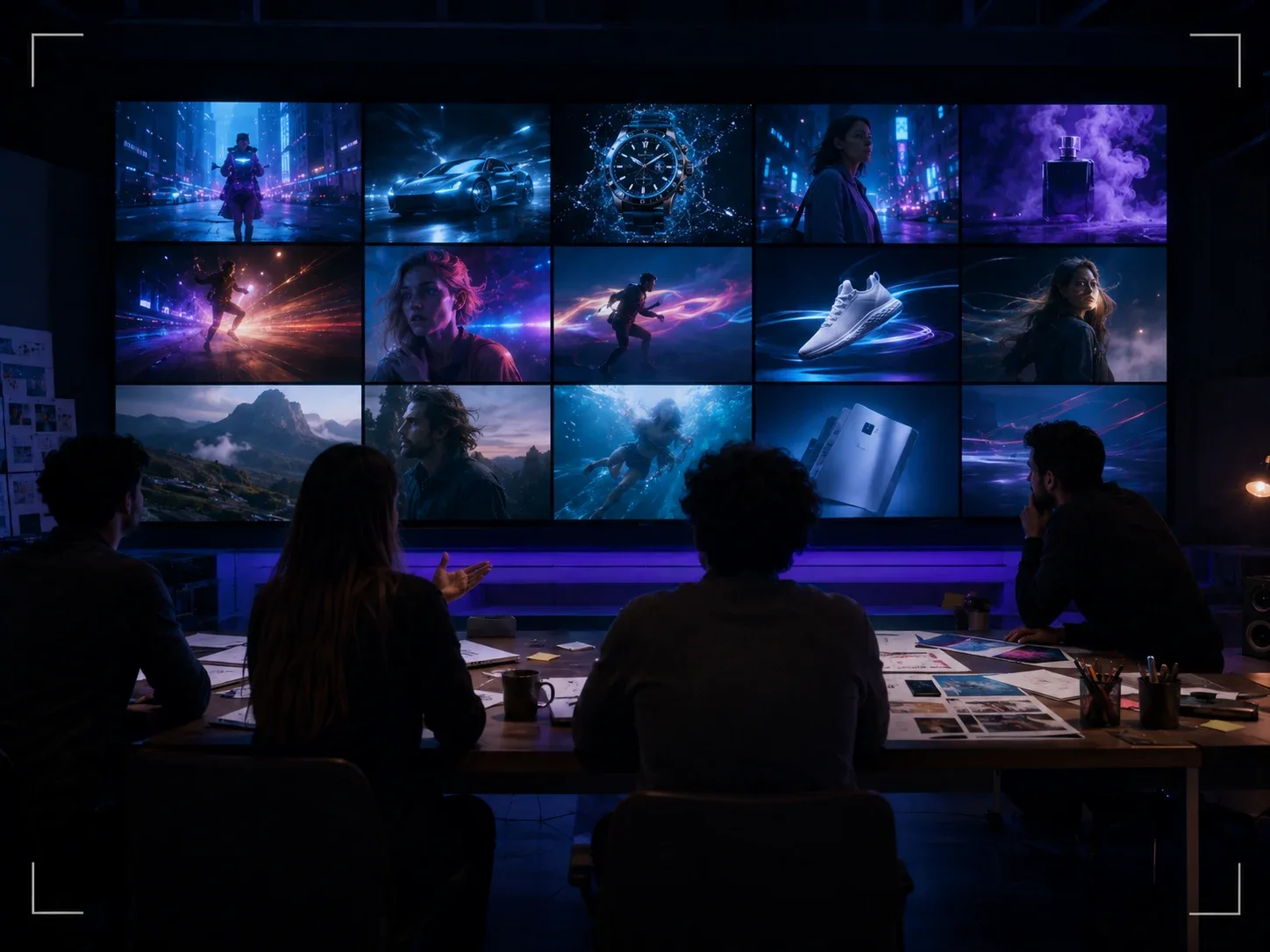
Watercolour
"Loose watercolour illustration, soft bleeding edges, paper texture, muted pastel palette, white margins, motion unchanged."
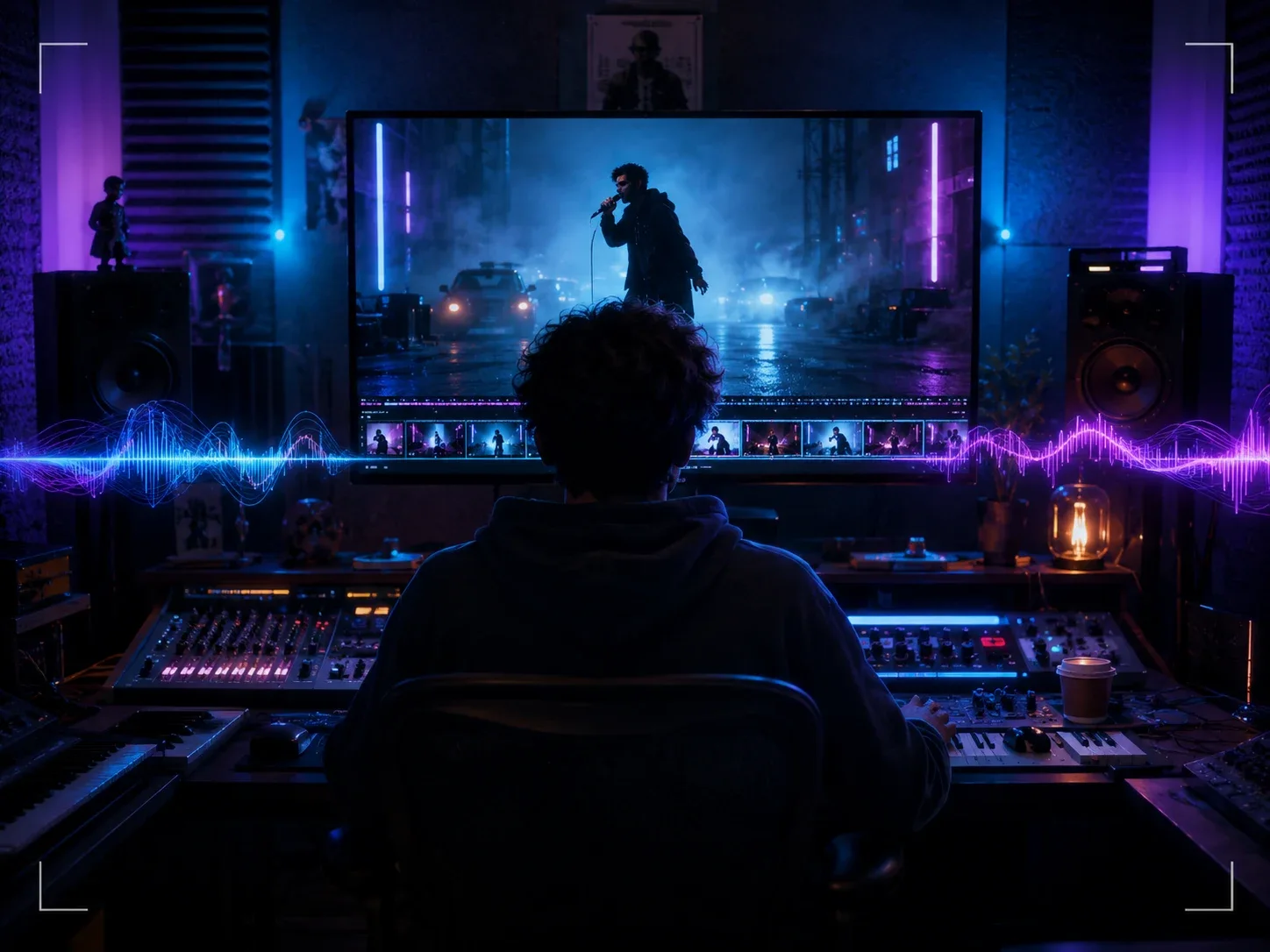
Film noir
"1940s black and white film noir, hard key light, deep shadows, venetian blind patterns, light film grain, keep the blocking and camera move exactly as shot."
Prepare the Clip Before You Upload
Most disappointing video to video results trace back to the source clip, not the prompt. Four checks fix nearly all of them.
MP4, under 10 MB
That is the upload limit. Export at 720p with a moderate bitrate and a 10-second clip lands well under it. Trim in your phone's gallery app before uploading.
Match the length to the model
Wan 2.6 outputs 5 or 10 seconds, Wan 2.7 4 to 10, HappyHorse 5 to 15. A 30-second source will not come back as 30 seconds; cut the moment you want first.
One subject, steady camera
Restyling amplifies shake and confuses on crowds. A single person or object, a slow camera move and even light give the model a clean skeleton to repaint.
Describe the change, not the clip
The model already sees the footage. Spend the prompt on the new style, the new lighting and the one thing you want swapped, and end with what must stay the same.
One Balance for Every Video to Video Model
Restyles start at 60 credits on Wan 2.6 and Wan 2.7, 125 on HappyHorse 1.0. Plans begin at $15.9 a month billed yearly, and credit packs top up any plan without a subscription change.
Yearly prices, shown per month. Monthly billing and credit packs are on the pricing page.
Video to Video AI FAQ
Straight answers to the questions people ask before their first restyle.
The model analyses the motion in your source clip, frame by frame, then re-renders each frame according to your prompt while keeping that motion as the guide. The output has the same movement and timing as the original but a different style, setting or set of materials. It is a repaint of the footage, not a filter laid on top of it.
Wan 2.6 and Wan 2.7 cost 60 credits per clip; HappyHorse 1.0 costs 125. Longer durations and 1080p can raise the price, and the exact cost is shown next to the Generate button before you spend anything. See the pricing page for plan sizes.
MP4 files up to 10 MB. Export at 720p with a moderate bitrate and a clip of up to about 10 seconds fits easily. Trim the clip to the moment you want before uploading; the model re-renders the whole file you give it.
Their movement, position and timing stay. Their appearance follows your prompt: if you ask for anime, they become anime characters; if you say "keep the clothing colours", the model tries to. Identity is preserved better on steady, well-lit clips with a single subject. For face-critical work, run a 5-second test on Wan 2.6 first.
Wan 2.6 for style transfer at the lowest cost. Wan 2.7 when you also need to change the aspect ratio, for example a 16:9 clip into 9:16. HappyHorse 1.0 for precise object or setting edits and for clips up to 15 seconds. The cheapest way to decide is a 5-second test on Wan 2.6 before committing to a longer run.
No. The three video to video models return silent video. Keep your original audio track and lay it back under the restyled clip in your editor; the timing matches frame for frame, so it lines up without adjustment.
Pick a duration the model supports and it renders to that length: up to 10 seconds on Wan 2.6 and 2.7, up to 15 on HappyHorse 1.0. Results are most faithful when the output length matches the source. For longer pieces, restyle each shot separately and cut them together.
You sign in before the first clip because generation runs on credits attached to your account; sign-up is one click with Google. The output is yours to use in personal or commercial work, and every result is saved to your history for later download.
Give Your First Clip a New Look
Upload ten seconds of anything, name the style, and watch the same motion come back transformed. Three video to video models, one generator, results in minutes.