 Anyscene AI
AI Image Extender
Give any photo more room. Pick a new shape or zoom out, and the AI fills the edges so it reads as one picture.
16:9 · 2K · 58% new
Drop a photo here, or click to upload
PNG · JPG · WEBP · HEIC — up to 10 MB
New shape
Where the photo sits
What goes in the new space (optional)
Your photos are used only to make your result and are never used for training.
Made with this tool
See the AI Image Extender at Work
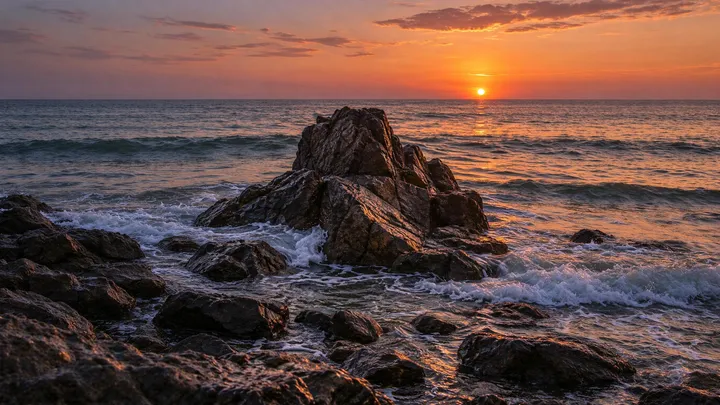
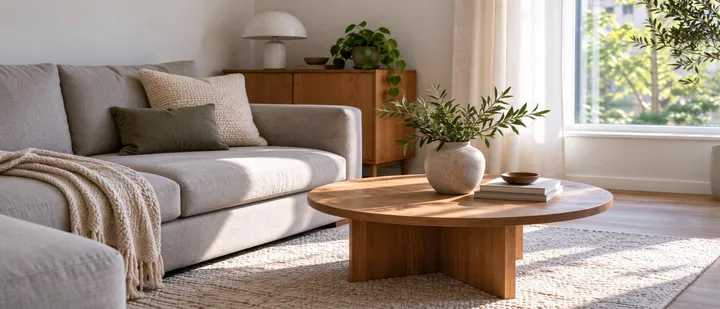
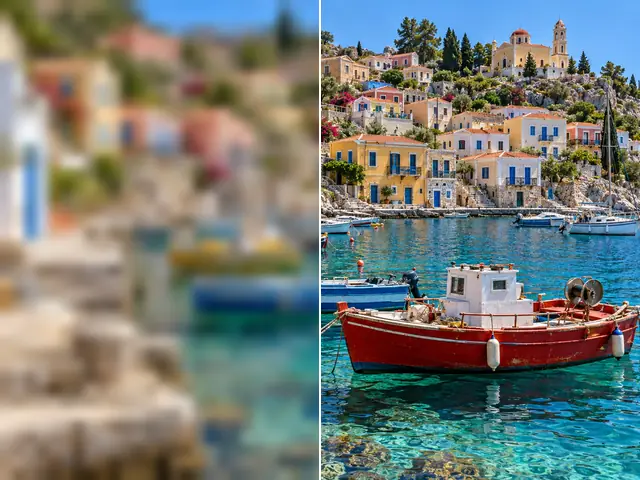
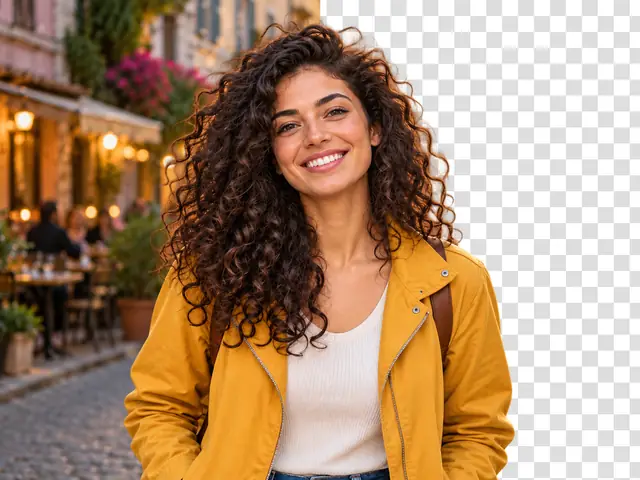
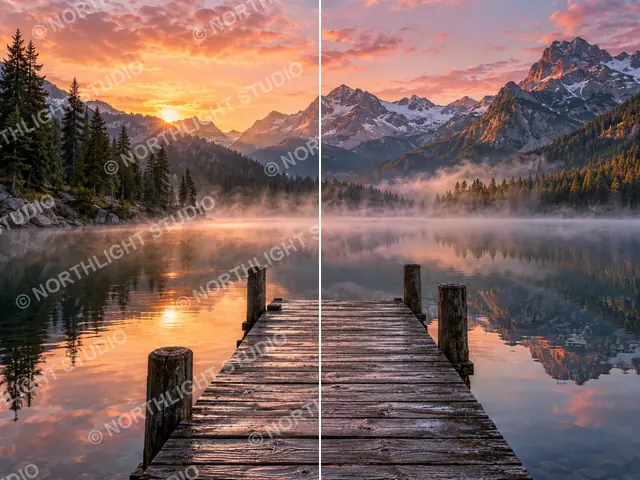
Six photos, each extended once with this AI image extender and not retouched afterwards. The dashed frame marks where the original sat; everything outside it is new.
3:4 → 16:9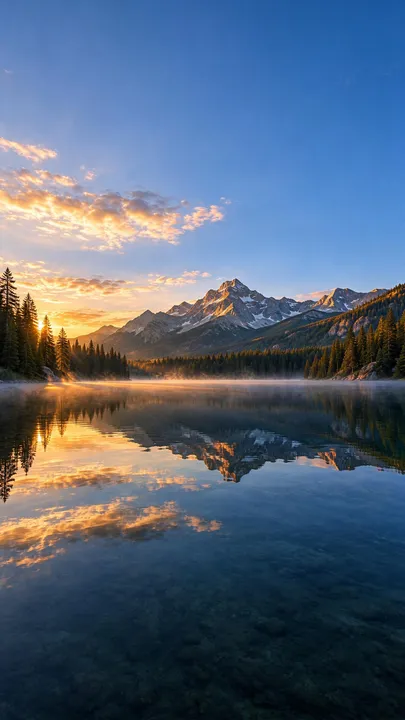 16:9 → 9:16
 2:3 → 3:2
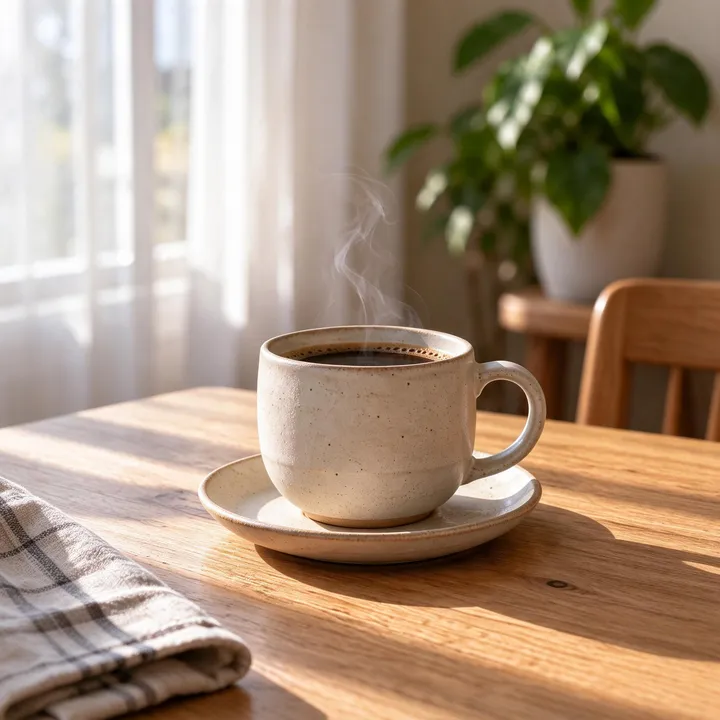 3:4 → 1:1
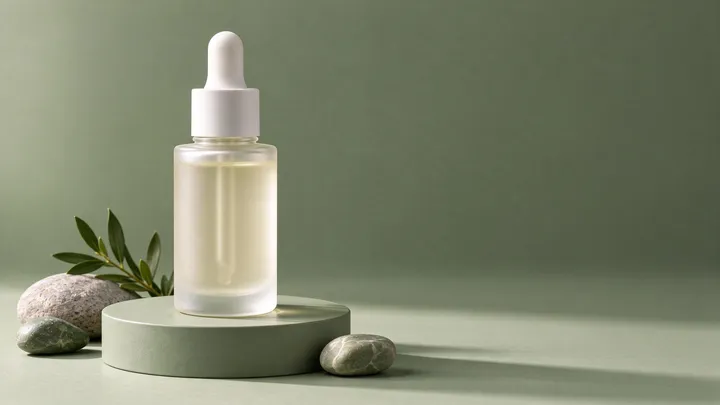 1:1 → 16:9
 4:3 → 21:9
The six original photos were generated for this page. Each extended picture is exactly what the AI image extender returned at 2K, shown smaller here.
Eight shapes
Pick the Shape Before You Post
Every platform shows pictures in its own shape and crops whatever doesn't fit. Extend to that shape first with the AI image extender and nothing important gets cut off.
Square 1:1
Product listings, carousels and profile pictures.
Shopify says a 2048 × 2048 px square usually displays best for product photos. Shopify Help Center
Extend to 1:1 →Photo 3:2
4 × 6 in prints and link previews.
LinkedIn recommends 3:2 to 16:9 for link thumbnails. LinkedIn Help
Extend to 3:2 →Pin 2:3
Pinterest pins, posters and book covers.
Pinterest recommends 2:3, or 1000 × 1500 px, for standard pins. Pinterest Help
Extend to 2:3 →Widescreen 16:9
YouTube thumbnails, slides and desktop wallpapers.
YouTube recommends 16:9 at 3840 × 2160 px for video thumbnails. YouTube Help
Extend to 16:9 →Vertical 9:16
Shorts and Stories covers, phone wallpapers.
YouTube recommends 9:16 at 2160 × 3840 px for Shorts thumbnails. YouTube Help
Extend to 9:16 →Each AI image extender result comes back at about 4 megapixels: 2048 × 2048 for a square, 2816 × 1584 for 16:9, 3136 × 1344 for 21:9. Etsy asks for listing photos at least 2000 px on each side and eBay suggests about 1600 × 1600, so a square result meets both.
Etsy Help: photos for your listingseBay Help: adding pictures
Our numbers
How Much of Your Picture Is New?
Change the shape and part of the result has to be drawn from scratch. We worked out how much for the six most common photo shapes, so you know before you run the AI image extender.
Swipe sideways to see all eight shapes.
| Your photo → new shape | 1:1 | 4:3 | 3:4 | 3:2 | 2:3 | 16:9 | 9:16 | 21:9 |
|---|---|---|---|---|---|---|---|---|
| Phone photo, landscape4:3 | 25% | same shape | 44% | 11% | 50% | 25% | 58% | 43% |
| Phone photo, portrait3:4 | 25% | 44% | same shape | 50% | 11% | 58% | 25% | 68% |
| Video frame16:9 | 44% | 25% | 58% | 16% | 63% | same shape | 68% | 24% |
| Square post1:1 | same shape | 25% | 25% | 33% | 33% | 44% | 44% | 57% |
| Camera photo, landscape3:2 | 33% | 11% | 50% | same shape | 56% | 16% | 63% | 36% |
| Camera photo, portrait2:3 | 33% | 50% | 11% | 56% | same shape | 63% | 16% | 71% |
- Under 30%: the AI mostly continues what is there
- 30–60%: check the edges
- Over 60%: most of the picture is new, so describe it
58%
of a 16:9 banner is new when it starts as a portrait phone photo.
75%
of the picture is new after a 2× zoom out: the original is one quarter of it.
11%
is all a landscape phone photo (4:3) needs to become a 3:2 print.
How we count: the photo keeps its full height or width, so the new share is 1 − (the narrower shape ÷ the wider shape), each written as width ÷ height. A zoom out of 1.5× leaves 56% new, 2× leaves 75%.
Definition
What Is an AI Image Extender?
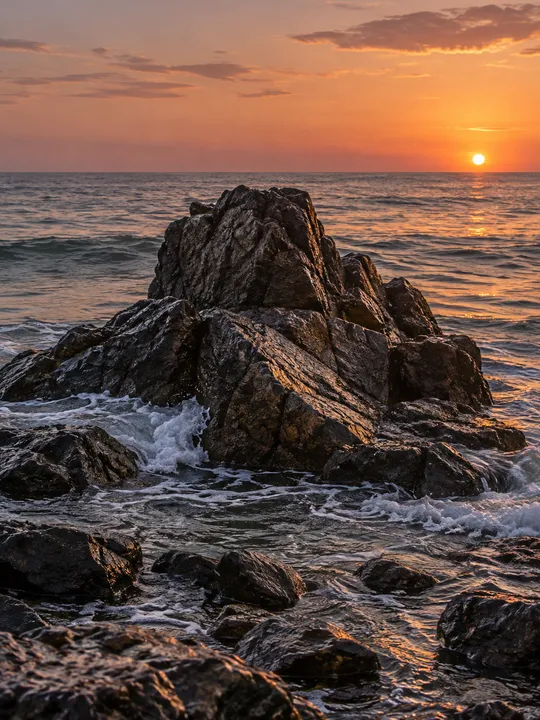
An AI image extender is an editing tool that makes a photo larger than its frame: it adds new space around the picture and paints that space to match what is already there.
The same job is called uncropping, outpainting or expanding an image. It does not bring back pixels that were cropped away; it draws new ones that fit the scene. An upscaler is the opposite: the same picture with more detail. An extender gives you more picture.
What changes
- The shape and size of the picture
- The space around your photo, which is new
- How much of the scene you can see
What the AI keeps
- Your subject, its colors and its light
- The perspective and the horizon
- The look of the camera: grain and sharpness
These lists are part of the instruction our AI image extender sends with every photo. The model redraws the whole picture, so details near the frame can move slightly: switch on the original frame to check.
How to Extend an Image in 3 Steps
Upload, pick a shape, extend. The AI image extender returns the new picture in about 30 to 40 seconds.
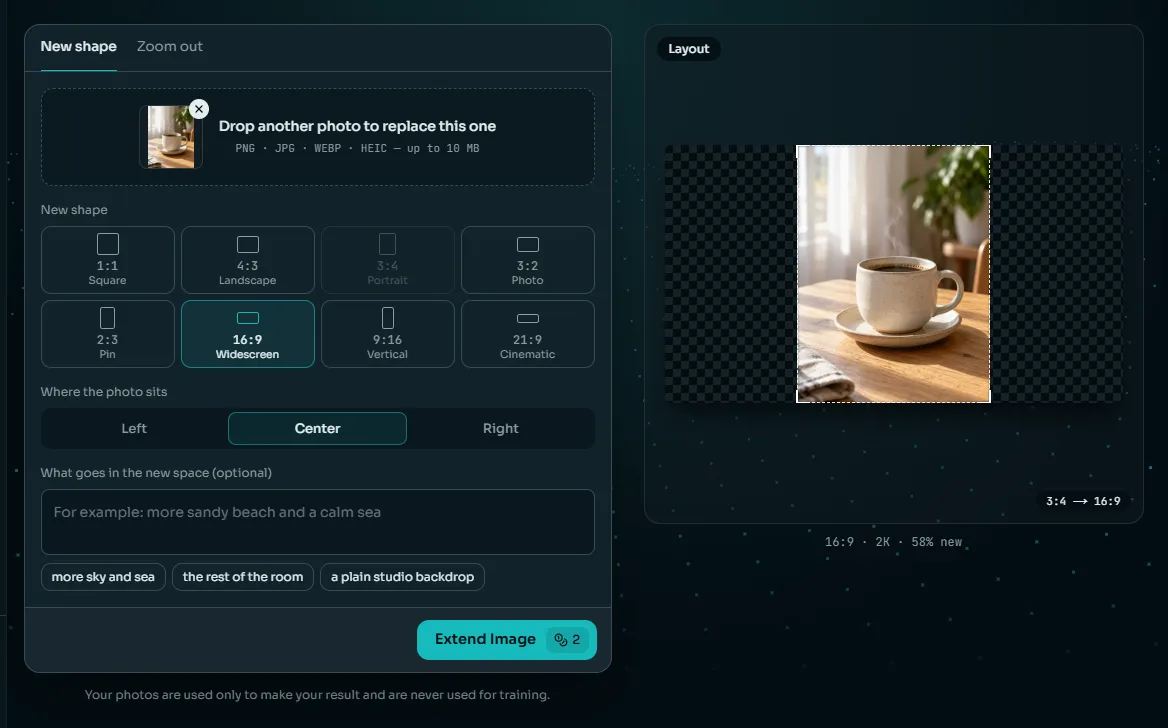
Step 1: Upload a photo
Open the AI image extender and drop in a JPG, PNG, WebP or HEIC up to 10 MB. Any photo works; sharp ones with open, even edges extend best.
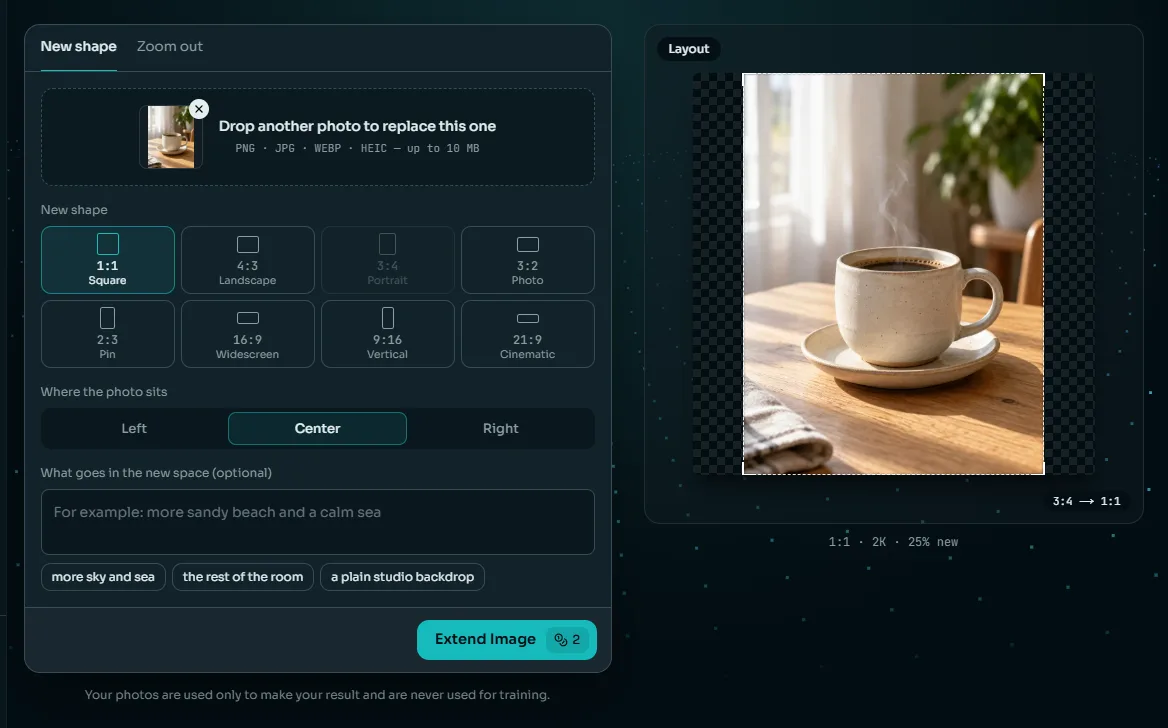
Step 2: Choose the new shape
Pick one of eight shapes, or Zoom out to keep the shape and add space on every side. Set where the photo sits and, if you like, write a few words about the new space.
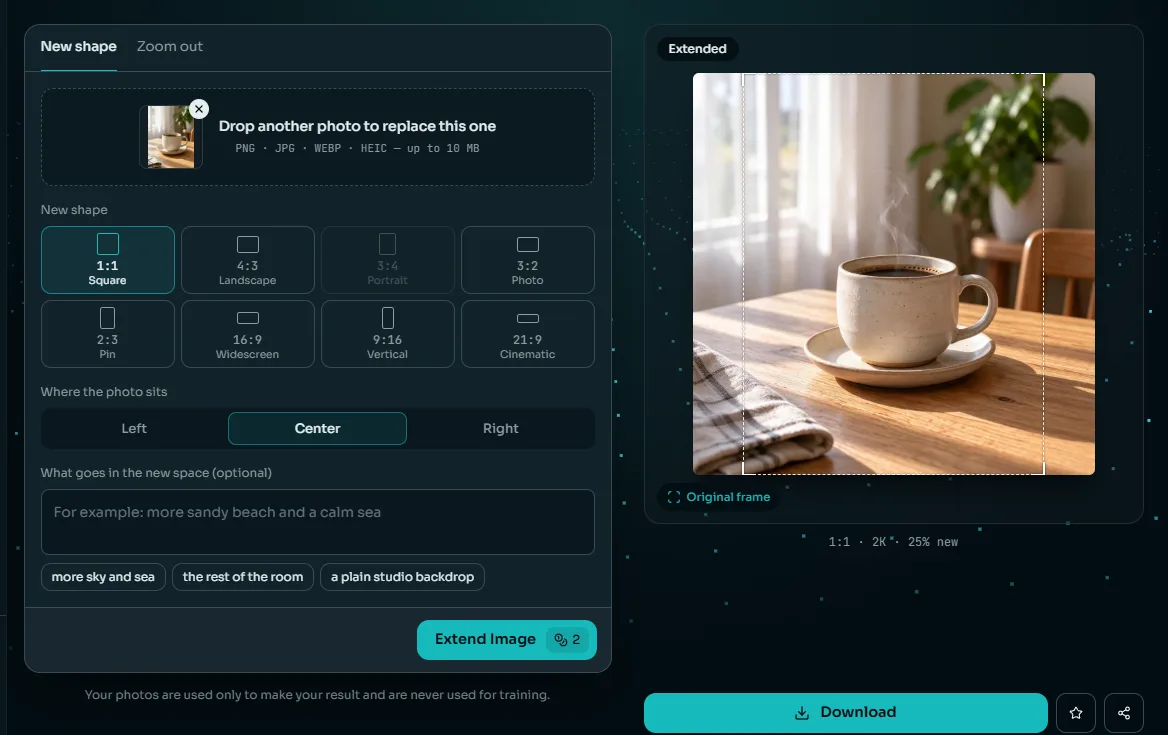
Step 3: Extend and download
Press Extend Image; the price, 2 credits, is on the button. Download the 2K result, check it against the original frame, or extend it again.
Before you upload
Photos the AI Image Extender Handles Well
What touches the edge of your photo decides how well it extends. Open, even surfaces continue easily; details the AI has to guess do not.
Extends well
Sky, water and open land
Sea, clouds, sand, grass and snow repeat naturally, so the AI image extender blends the new space in.
Plain backdrops
Studio paper, painted walls and soft blur leave the AI little to get wrong.
A soft background
A blurred street or room behind a person extends well, and the person stays put.
Hard to extend
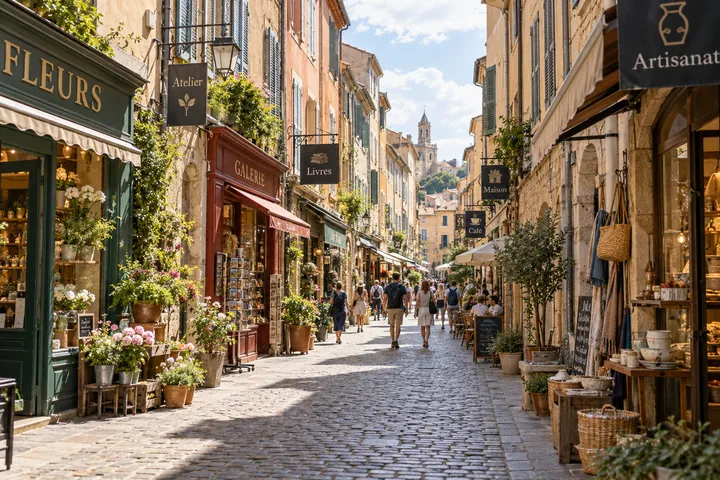
Text at the edge
Signs and labels cut by the frame come back as made-up letters.
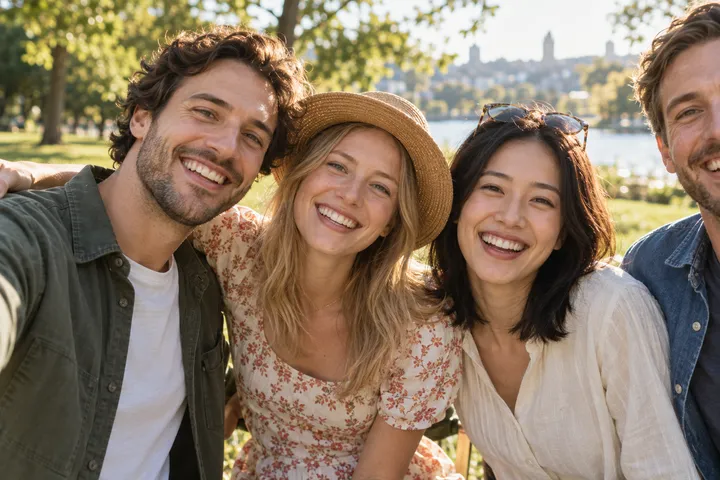
People cut off by the frame
Half a face or a hand at the edge has to be guessed, and guesses about people show.
Repeating patterns
Windows, tiles and fences must line up exactly; small slips stand out.
Someone cut off at one edge? Set the position so the new space goes on the other side.
Optional words
Tell It What Goes in the New Space
Without words, the AI image extender continues whatever touches the edge. A short line helps when most of the picture is new, or when you want something particular there.
One good description
more calm seaWhatand pale evening skyWhaton the leftWherein the same soft lightLook
Too vague
“make it bigger and nicer”
The tool already makes it bigger, and "nicer" is nothing the AI can draw.
Clear
“more sandy beach and a calm sea, same evening light”
It names what belongs in the new space and keeps the light consistent.
Describe the new space
Your photo stays as it is: the AI image extender only paints the area around it, so write about that.
Leave out text and logos
Words drawn in the new space come out garbled. Add text later in a design tool.
Keep it to one line
Up to 200 characters. A long list of objects crowds the frame.
Use cases
What People Use an AI Image Extender For
Most jobs come down to one photo that has to fit a shape it wasn't taken in.
16:9
is the thumbnail shape YouTube recommends for videos, at 3840 × 2160 px.
YouTube Help, custom thumbnails2:3
is the shape Pinterest recommends for standard pins, or 1000 × 1500 px.
Pinterest Help, product specs2048 px
squares are what Shopify says usually display best for product photos.
Shopify Help Center, product mediaOne photo, three shapes: run the AI image extender once for each instead of reshooting.
Video thumbnails
Turn an upright frame into a 16:9 thumbnail without black bars on the sides.
Stories and Shorts
Give a landscape photo the sky and ground it needs to fill a 9:16 screen.
Square product photos
Center a product on a 1:1 canvas with more of the same backdrop around it.
Room for a headline
Put the photo on one side and leave clean space for ad copy on the other.
Print sizes
Fit a phone photo to a 3:2 frame for a 4 × 6 print without cutting off heads.
Wallpapers and banners
Stretch a favorite photo to 16:9 or 21:9 for a desktop, a header or a banner.
Other ways to fix the shape
AI Image Extender vs. Cropping, Stretching and Fill Tools
A photo in the wrong shape can be fixed five ways. Only two of them add picture that looks real.
| AI image extender | Crop | Stretch | Blurred or colored bars | Fill in a photo editor | |
|---|---|---|---|---|---|
| Keeps the whole photo | Yes | No, the edges go | Yes, but distorted | Yes | Yes |
| Fills the new shape | With more of the scene | Yes | Yes | With bars | With more of the scene |
| Looks like one photo | Usually | Yes | No | No | Usually |
| Time per photo | 30–40 seconds | Seconds | Seconds | A minute or two | Several minutes |
| Skill needed | None | None | None | A little | Editing experience |
Crop when the edges don't matter. Use the AI image extender when they do.
Honest limits
What the AI Image Extender Can't Do
It is quick and usually convincing, but it draws rather than recovers. Six things to know before you rely on it.
It can't bring back a crop
The new space is invented to fit. If the real scene had a person or a sign there, the AI can't know.
The whole picture is redrawn
The AI image extender redraws everything, so details inside your photo can shift a little. Switch on the original frame to compare.
Text comes out garbled
Letters and logos in the new space are made up. Add real text afterwards.
Faces at the edge
A face or a hand cut off by the frame is completed from imagination.
Eight shapes, no 4:5
For a 4:5 portrait post, extend to 3:4 and trim about 6% off the height.
About 4 megapixels
Plenty for screens. A 16:9 result prints at about 9 × 5 in at 300 dpi.
From One Photo to Every Format
A picture from the AI image extender is often only the first step. Each of these tools takes the result as it is, on the same credit balance.
Extend it
Fit the photo to the shape you need, with the new space filled in.
Edit it
Change the light, swap the sky or remove a detail with the AI image editor.
Make it move
Turn a 9:16 or 16:9 result into a short clip with image to video.
Plans for every model and tool
Every plan unlocks all 28 models and every tool on Anyscene, this one included. Yearly billing saves 20%, and a credit pack tops up any plan.
Yearly prices, shown per month. Monthly billing and credit packs are on the pricing page.
AI Image Extender FAQ
Straight answers before you spend a credit.
Uncropping makes a photo larger than its frame, as if the camera had seen more. An AI image extender does it by drawing new picture around the original. It cannot recover the real pixels a crop removed.
No. The AI image extender is for paid plans and costs 2 credits per image. If an extension fails, the credits are refunded automatically.
Your photo goes onto the new canvas unchanged and the AI is told to keep it. Because the model redraws the whole picture at 2K, small details inside it can shift; the original frame shows where your photo was.
Eight: 1:1, 4:3, 3:4, 3:2, 2:3, 16:9, 9:16 and 21:9. Zoom out keeps the shape closest to your photo's and adds space on every side, by 1.5× or 2×.
About 4 megapixels: 2048 × 2048 px for a square, 2816 × 1584 px for 16:9, 1584 × 2816 px for 9:16 and 3136 × 1344 px for 21:9.
Yes. Put the photo on the left, in the center or on the right (top, center or bottom for taller shapes). The new space goes on the other side, or on both sides when it is centered.
Yes, in one optional line of up to 200 characters, for example "more sky and calm sea". Without it, the AI continues what touches the edge of your photo.
Yes, when the people are inside the frame. If someone is cut off at an edge, the AI has to invent the rest of them, so put the new space on the other side or choose another photo.
Usually because most of the picture is new, or the edge has text, faces or repeating patterns. Try a closer shape, move the photo, add a short description, or extend again: every run is drawn fresh.
More AI Photo Tools
Same photo, same credit balance, the next thing you may want to do with it.
Give Your Photo the Room It Needs
Sign in, upload a photo and extend it to any of eight shapes with the AI image extender. 2 credits a picture, and failed extensions are refunded.