How to Generate Images from Text with AI: A Complete Guide (2026)

2026/04/18

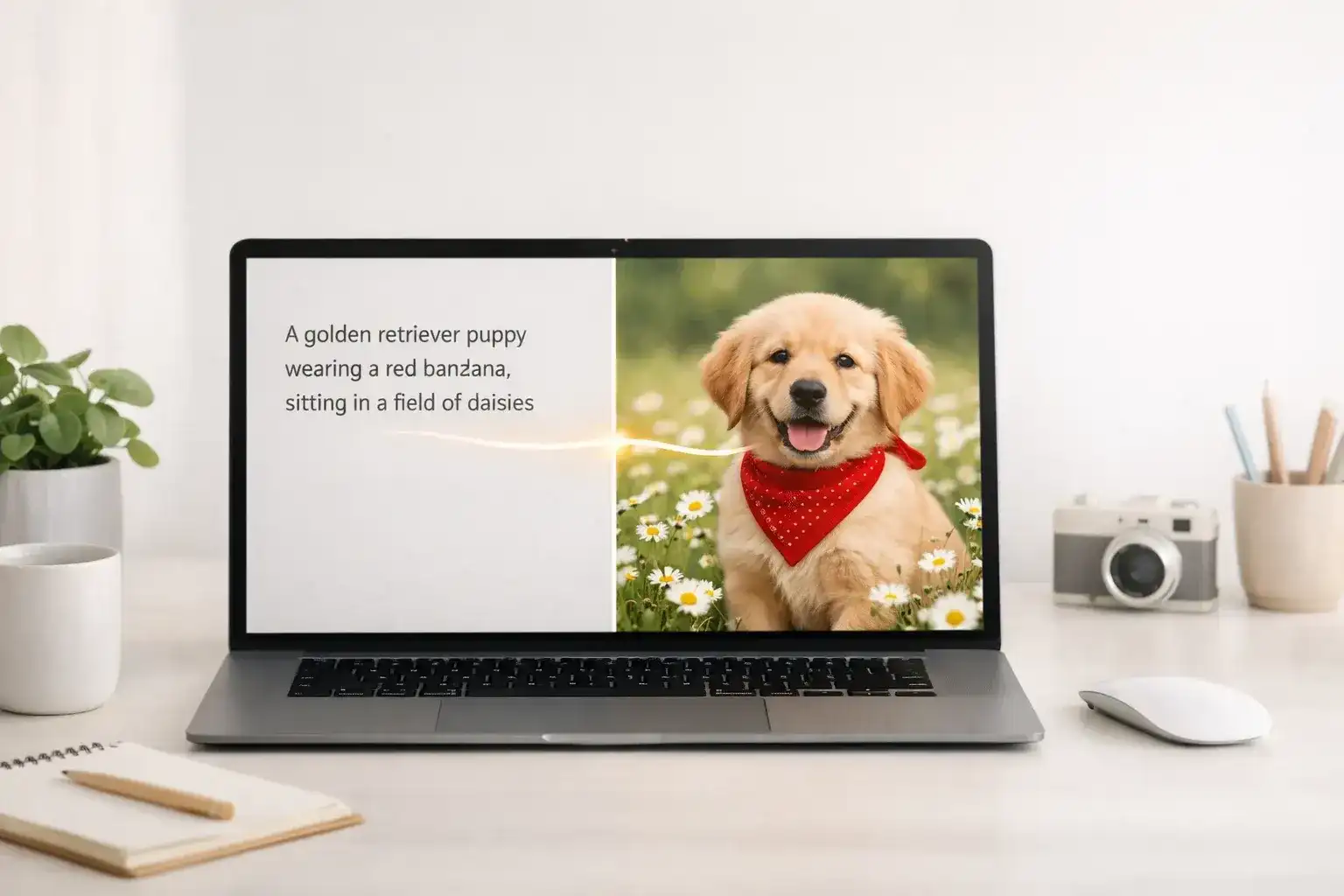
AI text-to-image generator workflow: a prompt on a laptop rendered as a finished photograph

You type a sentence. A minute later, you have a picture.

That's what text-to-image AI actually does in 2026, and this guide walks through every step — picking a model, writing a prompt that doesn't produce mush, fixing the six-fingered hands, and shipping images you can use on a real site.

We run Anyscene, so we've generated a lot of bad images before figuring out what works. Everything below is what we wish someone had told us on day one.

Keep scrolling if you want the short version. Bookmark it if you want the long one.

What Text-to-Image AI Actually Does

Most tutorials skip this part. Don't. Knowing the shape of the model changes how you prompt it.

How diffusion models work, in plain English

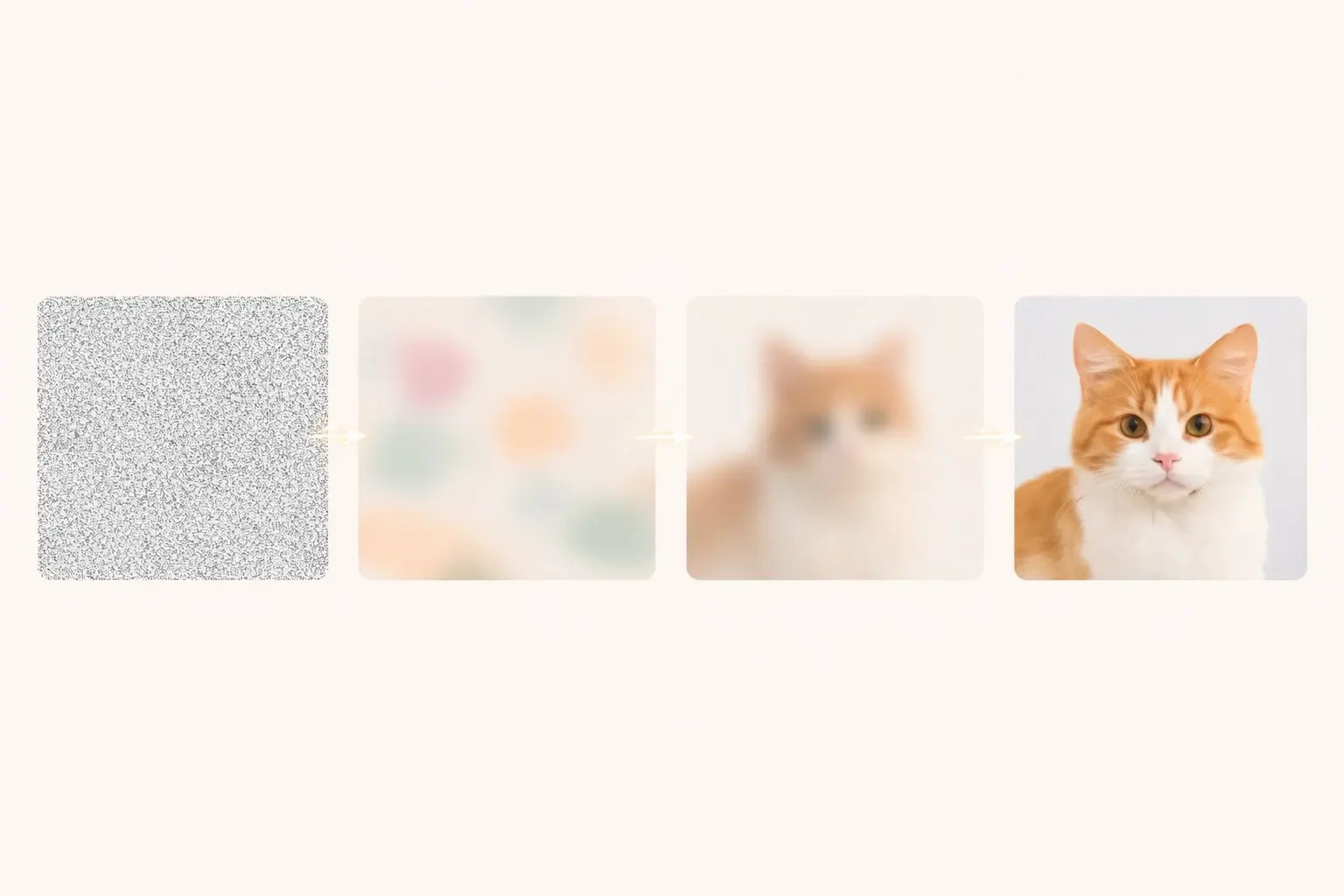
Take a photo. Add random noise until it looks like TV static. Now teach a neural network to reverse that — to peel the noise off, one layer at a time, while a text prompt tells it what should be underneath.

Do this a few hundred million times during training and you get Midjourney, Flux, or Stable Diffusion. That's the whole trick.

How diffusion models work: four stages from random noise to a sharp photograph of a cat

Two things follow from this. First, the model has never seen your exact image before — it reconstructs one that matches your description. Second, the prompt is doing a lot of work. If your words are vague, the model fills the gap with whatever was most common in its training data. That's why a lazy prompt gives you a generic stock photo.

Text-to-image vs. image-to-text vs. image editing

People mix these up constantly. They're three different jobs.

TaskYou give itYou get backExample tools
Text-to-imageWordsA new imageAnyscene, Midjourney, Flux
Image-to-text (OCR)An imageThe words inside itGoogle Lens, Tesseract
Image editingAn image + instructionsThe same image, changedPhotoshop AI, Canva

This guide is about the first one. If you landed here trying to copy text off a screenshot, close this tab and search for OCR.

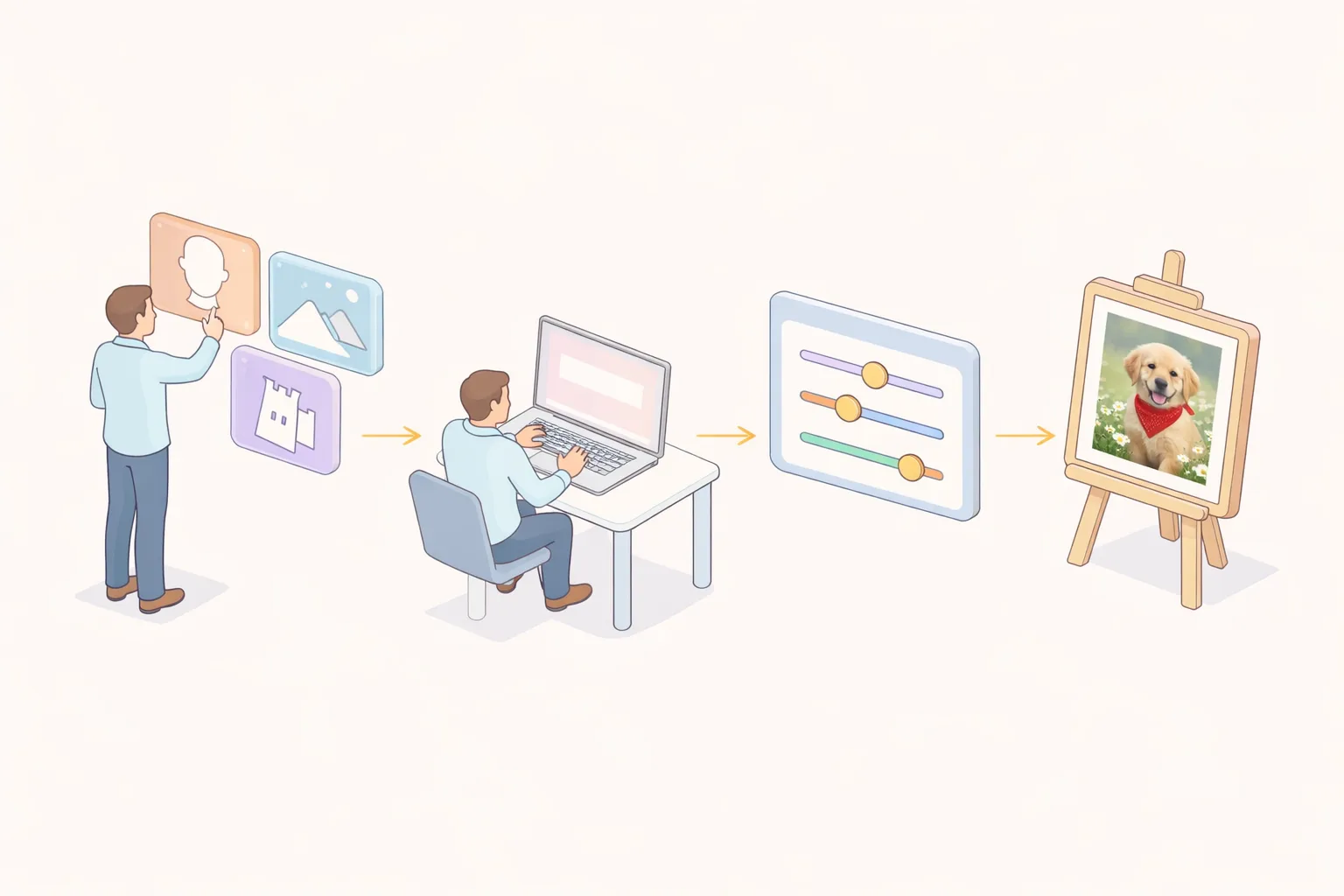
How to Generate an Image from Text in Four Steps

Four steps to generate an AI image from text: pick a model, write a prompt, tune parameters, view the result

Step 1 — Pick a model that matches your job

Every model has a personality. Using the wrong one is like asking a sports photographer to shoot a wedding.

  • Photorealism → Flux 1.1 Pro or Midjourney V7. Both handle skin, fabric, and natural light without looking plastic.
  • Stylised art or illustration → Midjourney V7 or SDXL. Better color composition out of the box.
  • Text inside the image (posters, signs, logos) → Flux Pro or DALL·E 3. Older models turn words into gibberish letters.
  • Speed over quality → Flux Schnell. Under two seconds per image, useful for rapid iteration.

If you don't know yet, pick one and commit for an afternoon. Bouncing between tools every ten minutes teaches you nothing.

Step 2 — Write a prompt with four parts

A good prompt answers four questions. If any one is missing, the model guesses — and its guess is usually generic.

PartQuestionExample
SubjectWhat's in the picture?a border collie catching a frisbee
SettingWhere and when?on a windy beach, late afternoon light
StyleHow does it look?shot on Fujifilm X-T5, 35mm, shallow depth of field
QualityHow polished?sharp focus, natural colors, no filter

Stitch them together:

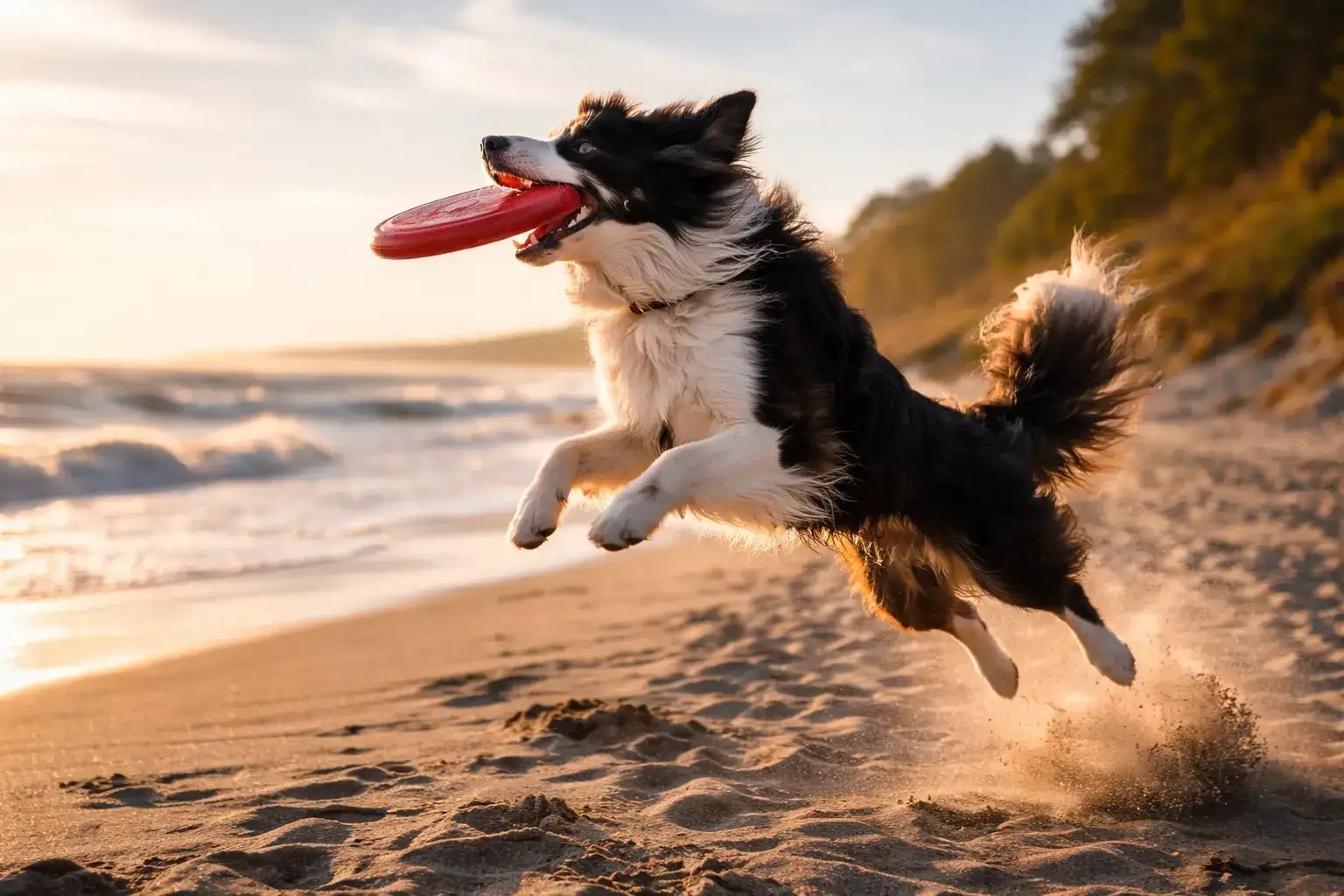
a border collie catching a frisbee on a windy beach, late afternoon light,
shot on Fujifilm X-T5, 35mm, shallow depth of field, sharp focus, natural colors

That's it. No magic words, no secret parameters. Here's what that prompt gave us:

AI-generated photograph of a border collie catching a red frisbee on a windy beach at golden hour

Step 3 — Tune three parameters (and ignore the rest)

Most platforms throw fifteen sliders at you. You only need three.

  • Seed — same seed plus same prompt gives the same image. Keep the one you like so you can iterate around it.
  • Steps — more steps, more detail, longer wait. 30 is the sweet spot. Above 50 is diminishing returns.
  • CFG / Guidance — how tightly the model hugs your prompt. Default is 7. Push to 10 for precision, drop to 4 for creative interpretation.

Everything else — samplers, schedulers, clip skip — matters less than a better prompt.

Step 4 — Iterate, don't start over

First image never lands. Second one usually doesn't either.

Change one thing at a time. Swap the lens, not the whole scene. Swap the time of day, not the subject. Track which word moved the picture — that's the real skill here, and it takes maybe fifty generations to build.

If the twentieth attempt still looks wrong, your prompt probably isn't the problem. The model is. See Step 1.

The Tools Worth Trying in 2026

Pricing and features shift every few months. As of this writing, here's where each tool wins.

ToolBest forSpeedPriceWhere it wins
AnysceneScene-based generation, marketers~8sFree + paid tiersScene presets, one-click variations
Midjourney V7Beauty out of the box~15sFrom $10/monthNo post-processing needed
Flux 1.1 ProRealism, readable text~10sPay per imageHands, faces, typography
Stable Diffusion 3.5Open source, local useDepends on GPUFreeFull control, no censorship
DALL·E 3Conversation-first editing~20sVia ChatGPT PlusMulti-turn refinement

Our honest take: start with Anyscene or Midjourney if you want results today. Move to Flux when you need text-on-image or commercial-grade realism. Touch Stable Diffusion only if you have a GPU and a weekend to spend.

Prompt Engineering That Actually Moves the Picture

Most "prompt guides" are twelve paragraphs on the same five ideas. Here's the short version.

The 4-part formula, reused

Subject · Setting · Style · Quality. Use it for every prompt. Memorize it and stop reading prompt guides.

Ten prompt templates you can copy

Paste any of these, swap the noun, and you have a working prompt.

1. Product photography: matte-white ceramic {product} on a peach-to-coral
   gradient background, studio softbox lighting, soft shadow, centered, 1:1.

2. Isometric SaaS illustration: a cloud dashboard with floating charts,
   pastel palette, clean lines, marketing style, 16:9.

3. Anime portrait: young woman with short black hair, cherry blossoms
   drifting, cel shading, pastel colors, 2:3.

4. Architectural concept: modernist house with glass walls, cantilevered
   over a pine forest at dusk, warm interior glow, cinematic, 16:9.

5. Botanical watercolor: eucalyptus sprig, loose brushstrokes, soft greens,
   paper texture, white background, 1:1.

6. Low-poly 3D scene: tiny mountain village with pine trees and a river,
   mint and sky-blue palette, soft ambient occlusion, 16:9.

7. Pixel art: cozy wizard's study, bookshelves, crystal ball, black cat,
   warm candlelight, 16-bit style, 1:1.

8. Minimalist line drawing: hand holding a coffee cup, thin black line
   on off-white paper, centered, 1:1.

9. Cyberpunk cityscape: neon pink and teal signage, wet streets, light
   rain, lone silhouette, anamorphic lens, 16:9.

10. Studio food photography: overhead shot of ramen with soft-boiled egg,
    scallions, nori, dark slate background, side lighting, 1:1.

Each one follows Subject · Setting · Style · Quality. Read them again with that lens.

Negative prompts

If your model supports them, negative prompts cut half your retries. Paste this in the negative field and move on:

blurry, extra fingers, deformed hands, text artifacts, watermark,
low contrast, oversaturated, distorted face

Models that don't expose a negative-prompt field (DALL·E 3) will ignore this. Models that do (Flux, SD, Midjourney with --no) will thank you.

When the Image Comes Out Broken: A Fix Table

This is the part most guides skip. When your output is wrong, you don't need more theory — you need a lookup.

ProblemWhy it happensFix
Six fingers, melted handsModels under-trained on limbsAdd anatomically correct hands, five fingers; put deformed hands, extra fingers in the negative field
Garbled text on signsTokenizer can't spellSwitch to Flux Pro or DALL·E 3; keep text under four words; wrap it in quotes
Face looks offAspect ratio too wideUse 2:3 or 3:4 for portraits, not 16:9
Washed-out colorsCFG too lowRaise guidance to 8–10
Every face looks the sameDefault checkpoint biasAdd specific ethnicity, age, and features
Weird or flat lightingNo light direction in promptAdd rim light, golden hour, or studio softbox
Subject is tiny, lost in sceneNo framing wordAdd close-up, medium shot, or wide angle
Image looks AI-generatedOver-smoothed skin, symmetrical faceAdd film grain, natural imperfections, asymmetric features

Laminate this table. You will come back to it.

What People Actually Use This For

Not art shows. Real, boring, useful stuff.

Blog and article visuals. Replacing stock photos is the biggest single use case we see. One prompt, no licensing dance, matches your exact topic. This guide uses three.

Product mockups. See a packaging design before a designer touches it. Test five bottle shapes in an afternoon. Kill the ones that look wrong before the expensive render.

Social content. Ten post variations in an afternoon instead of ten hours. Same prompt, different seeds, pick the two best.

Storyboards and concept work. Test an idea visually before committing a budget. Good for ads, product launches, and anything that has to be pitched up the chain.

Listings and catalogs. Generate background variations for the same product shot. Useful when you have one photo and five campaigns.

Want to put yourself in these images? See How to Incorporate Yourself in an AI Image Generator →

Short version: commercial use is mostly fine if the tool's license allows it. Anyscene, Midjourney paid tiers, Flux Pro, and DALL·E 3 all permit commercial output.

Two things can still get you in trouble. Prompts that name a living artist's style (in the style of [Name]) are a grey area at best and actionable at worst. Outputs that reproduce a trademarked character — Mickey Mouse, a Pokémon, a branded logo — are on you, not the tool.

Some jurisdictions now require AI disclosure on ads and editorial content. Check your local rules before you publish.

Frequently Asked Questions

Is AI text-to-image free? Yes, for limited daily generations on most platforms, Anyscene included. Paid tiers buy you speed, higher resolution, and a commercial license.

What's the best AI image generator for beginners? Anyscene or Midjourney. Both work with plain English. No parameters to learn on day one.

Can I use AI-generated images commercially? On most paid tiers, yes. Check your specific plan's license page. Free-tier images often come with use restrictions.

Do I need a GPU? Only if you run Stable Diffusion locally. Web tools do the compute for you.

How long does one image take? Two seconds on fast models like Flux Schnell. Up to 30 seconds on high-quality ones.

Why do my images keep looking the same? Same seed, or same short prompt. Change one of them.

Can the AI draw readable text on an image? Flux Pro and DALL·E 3 can. Keep the text under four words. Older models garble anything longer.

Is this replacing designers? For stock photos and concept sketches, mostly yes. For brand identity and production art, no — someone still has to decide what's good.


Type the first sentence. That's the only step that matters.

Open Anyscene and generate your first image →

Next read: How Kling 2.6 changed video generation →

Anyscene Team

Anyscene Team

How to Generate Images from Text with AI: A Complete Guide (2026) | 博客